| 1 |
# Troubleshooting |
| 2 |
|
| 3 |
## Safety Precautions: |
| 4 |
- Set up the mount in accordance to the manual |
| 5 |
- make especially sure to align the triangle arrow marks to face each other, its the "home" position of the mount and assumes this position always prior to starting. |
| 6 |
- Always make sure you are able power off the device without touching it, to avoid injuries |
| 7 |
- pull the power plug rather than flip the power switch |
| 8 |
|
| 9 |
## USB Troubleshooting |
| 10 |
|
| 11 |
### Wrong device node |
| 12 |
The driver is not able to determine whether its connected to the correct serial device prior to communication being successfully established. |
| 13 |
However the driver issues a log message to the user, if it is not able to communicate with the mount. Furthermore the device enum on linux devices may shuffle the device nodes around. |
| 14 |
To fix this you can order udev to create a custom symlink to the device node by createing a new rule file. |
| 15 |
Use `lsusb` do retrieve the identifier of your usb to serial adapter: |
| 16 |
|
| 17 |
 |
| 18 |
|
| 19 |
> sudo nano /lib/udev/rules.d/10-local.rules |
| 20 |
|
| 21 |
add: |
| 22 |
<code>ACTION=="add", ATTRS{idVendor}=="0403", ATTRS{idProduct}=="6001", SYMLINK+="my_uart"</code> |
| 23 |
|
| 24 |
change `ATTRS` values accordingly. Change the `SYMLINK` value to a name fitting your needs. |
| 25 |
|
| 26 |
Use `CTRL`+`O` to save the file and `CTRL`+`x` to close the editor. |
| 27 |
|
| 28 |
After unplugging and plugging in the adapter a new device node in `dev` is created with the name chosen. |
| 29 |
|
| 30 |
You can change the serial name in the EKO configuration dialog. |
| 31 |
|
| 32 |
**Caveate:** Since some manufacturers do not bother to name their devices properly, and do not request a proper vendor id this solution only works as long as you have not several devices sharing the same vendor and product ids. |
| 33 |
|
| 34 |
### Permission problems |
| 35 |
Some linux distributions block users from using serial adapters which are not in a specific group. For astroberry it is called `dialout`. |
| 36 |
Use `groups` to find out what groups your user is in: |
| 37 |
|
| 38 |
 |
| 39 |
|
| 40 |
if your user does not have the `dialout` group in this list you may add it using: |
| 41 |
|
| 42 |
> sudo gpasswd --add ${USER} dialout |
| 43 |
|
| 44 |
The device permission issue should now be resolved after the next login. |
| 45 |
|
| 46 |
### Bugreport: Provide Useful Debug Information |
| 47 |
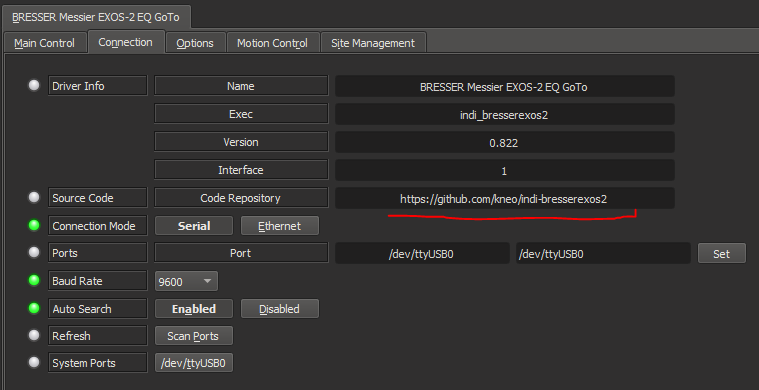
Please use the bug tracker in the connection tab: |
| 48 |
 |
| 49 |
|
| 50 |
Unfortunately this happends for several reasons, and complaining that it crashed really does not help alot. |
| 51 |
Therefore if you encounter a crash, it is important to isolate the problem. |
| 52 |
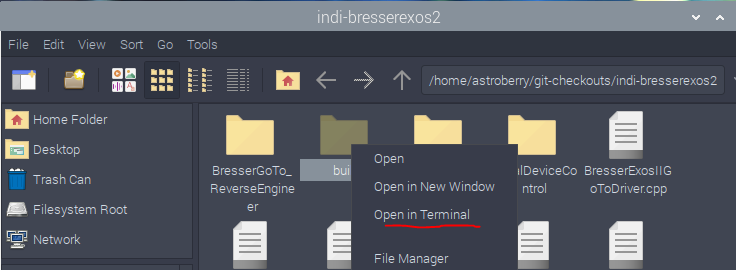
The Indi-Service is a complex system, to reduce side effects start the driver as an isolated instance. Navigate to the build directory you created on driver installation using your favorite file manager. Open a terminal in your build directory of the driver. |
| 53 |
|
| 54 |
 |
| 55 |
|
| 56 |
Then run the following command: |
| 57 |
|
| 58 |
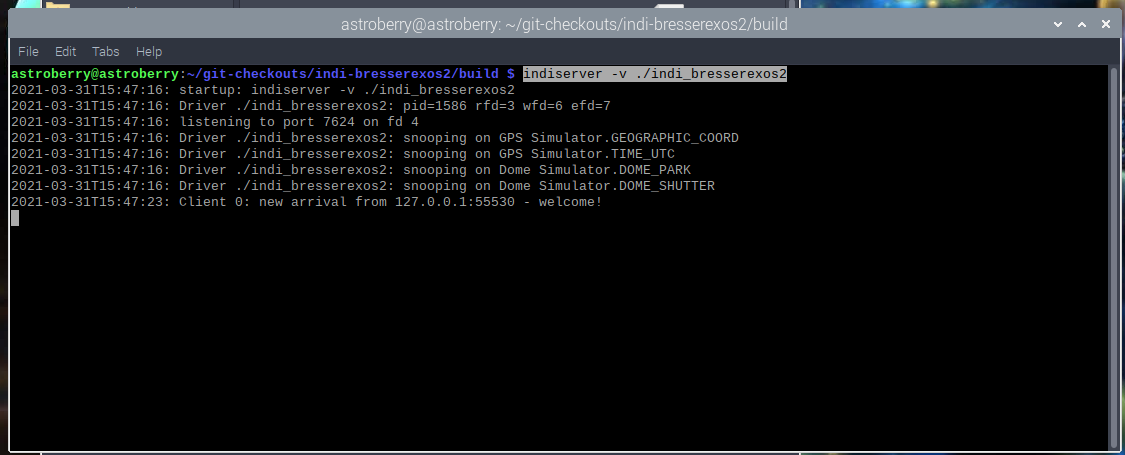
> indiserver -v ./indi_bresserexos2 |
| 59 |
|
| 60 |
The terminal should now block and display a lot of text lines: |
| 61 |
|
| 62 |
 |
| 63 |
|
| 64 |
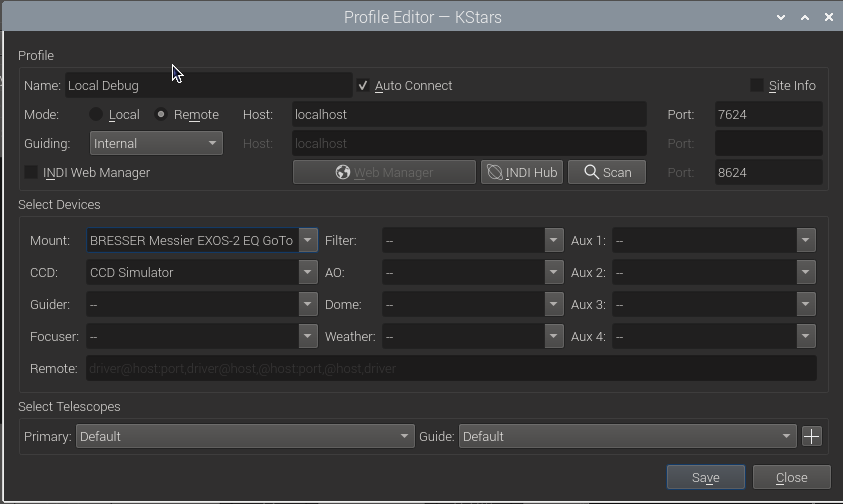
If the driver crashes on connection you need to connect a client, its recommended to create a new "debug" setup in eg. kstars, and connect to the test service locally not remotely only! E.g. Use the VNC connection to your Pi and create a new debug profile in EKOs: |
| 65 |
|
| 66 |
 |
| 67 |
|
| 68 |
Save and start the profile as usual, to see what happends. |
| 69 |
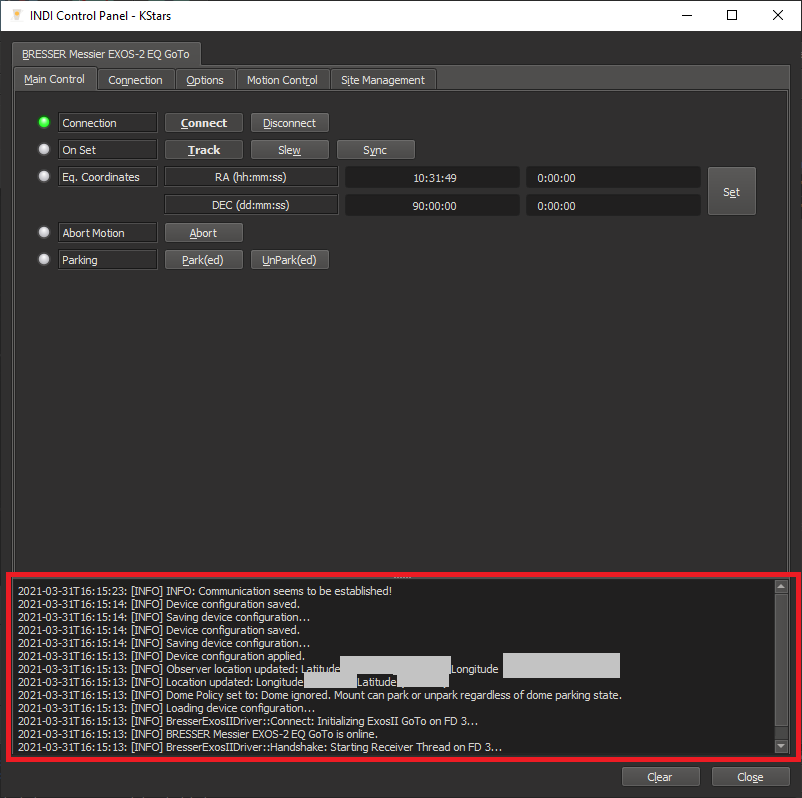
If the driver crashes the EKOs application should notify the user with a error message, please also provide this message! Also the terminal from earlier should now contain some information. Copy and paste this information into a logfile, and provide it with your bug report. |
| 70 |
|
| 71 |
If you are done without being able to reproduce the problem, chances are high, you have encounter side effects, with your equipment. You can stop the process in the terminal using the keyshortcut `CTRL`+`C`. |
| 72 |
|
| 73 |
Also the application log in the EKOs software does contain useful information so copy and paste that into a file and provide that too, if possible. |
| 74 |
|
| 75 |
 |
| 76 |
|
| 77 |
In this situation you may have encountered a side effect with your equipment. Using simple exclusion, should be help isolating the combination causing the problem. Simple start your setup with the mount and simulators only, and iteratively add components until it crashes. |
| 78 |
|
| 79 |
Generally speaking, its not simple to reproduce issues with no information. With providing accurate descriptions on how the reproduce a problem you'll do your part in inproving the overall stability of the driver. |
| 80 |
|
| 81 |
You may redact your location information, these should not matter. However you can test this by simply changing the location in EKOs. |
| 82 |
|
| 83 |
### Missing Symbols |
| 84 |
There were reported cases where, after updating the software packages of you linux distribution, you encounter crashes of the driver. |
| 85 |
If you set up a debug set up in the manner mentioned above, you can look through the output lines of the terminal. If encounter lines with something like: |
| 86 |
|
| 87 |
> 1970-01-01T03:13:37: Driver ./indi_bresserexos2: : **symbol lookup error: undefined symbol**: _ZN4INDI10BaseDevice13getDeviceNameEv |
| 88 |
|
| 89 |
it is likely you have this exact problem. |
| 90 |
You can resolve this by simply recompiling the driver. |
| 91 |
Open your build directory in a terminal, similarly to the procedure in the debug information section. |
| 92 |
Go to the [Driver installation](Installation.md) documentation to the stage where you perform the `cmake --build .` command and simply rerun the process from there. |
| 93 |
|
| 94 |
However there may cases where this does not work. So if you encounter linker or compiler error in the process, create a bug ticket, with keep the "useful debug information"-paradigm in mind. |
| 95 |
|
| 96 |
### Indi Webmanager Service does not display driver |
| 97 |
In order to avoid users the trouble of starting the whole application stack manually, the webmanager in astroberry is used to set up everything using a browser. |
| 98 |
|
| 99 |
However since the build system may change its default install prefixes (paths) via updates, its possible the `sudo cmake make install` command may place these files in a unexpected location. Thus the driver does not appear in the web manager list. |
| 100 |
|
| 101 |
In order to ensure operation place make sure the driver files are located at: |
| 102 |
|
| 103 |
- `indi_bresserexos2` needs to reside in `/usr/bin/` |
| 104 |
- `indi_bresserexos2.xml` needs to reside in `/usr/share/indi/` |
| 105 |
|
| 106 |
If you can not see the entries on your distribution, make sure your first remove to current installation to tidy up your system and avoid later issues with old driver files (see: [Driver removal](Installation.md#remove-the-driver) for the procedure) |
| 107 |
|
| 108 |
1. open your driver build directory in a terminal |
| 109 |
2. copy the driver files manually to the correct locations by using: |
| 110 |
|
| 111 |
- `sudo cp indi_bresserexos2 /usr/bin/` to copy the driver binary to its install directory |
| 112 |
- `sudo cp indi_bresserexos2.xml /usr/share/indi/` to copy the driver xml file to its install directory |
| 113 |
|
| 114 |
It is also posible the distribution you are using, expects the driver files in a completelly different spot, in that case ask your distribution maintainer information about where such files should be placed, or look for existing driver files in your filesystem (eg. shipped drivers) and place the Bresser driver files accordingly. |
| 115 |
|
| 116 |
This should solve this issue. |
| 117 |
|
| 118 |
### Difference in Coordinates between Astro Software and Handbox Display |
| 119 |
|
| 120 |
The coordinates in your astro software may differ from the coordinates displayed on handbox display. The reason is yet unknown, there was a bug with missing timezones. However after fixing this issue the difference only grew larger. |
| 121 |
General advice here: do not use the handbox to rely on coordinates. If you are synchronized with the sky, (eg. Polar Alignment, Star Alignment OK), your Astro software should be able to point to your targets no matter what the display says. |
| 122 |
|
| 123 |
If you see a known star in your scope you pointed to manually and confirmed its position, you should be fine pointing to any other object in the sky. |