| 1 |
# Codespaces Workflow |
| 2 |
|
| 3 |
A complete development environment can be accessed through [GitHub Codespaces](https://docs.github.com/codespaces/overview). |
| 4 |
|
| 5 |
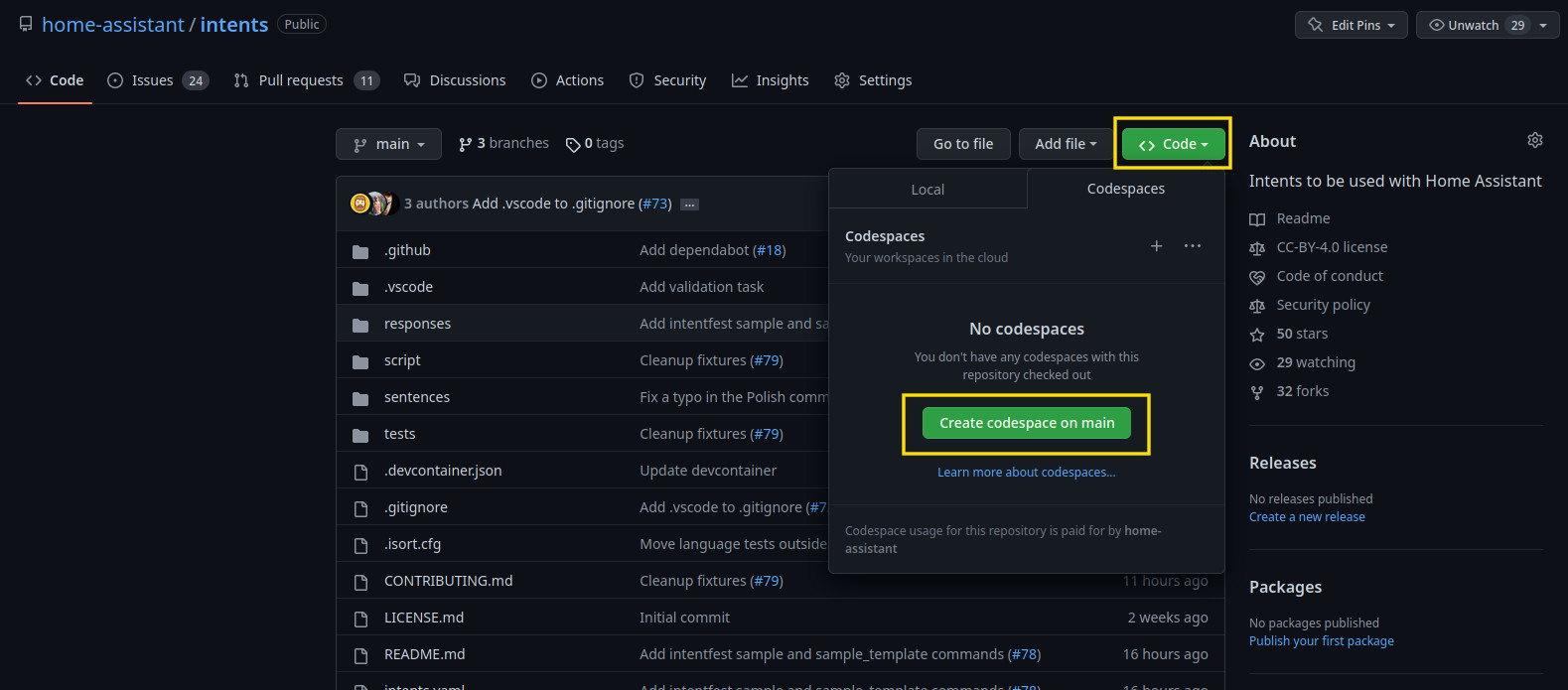
To get started, click the green "Code" button on the repository's main page, and then click "Create codespace on main": |
| 6 |
|
| 7 |
 |
| 8 |
|
| 9 |
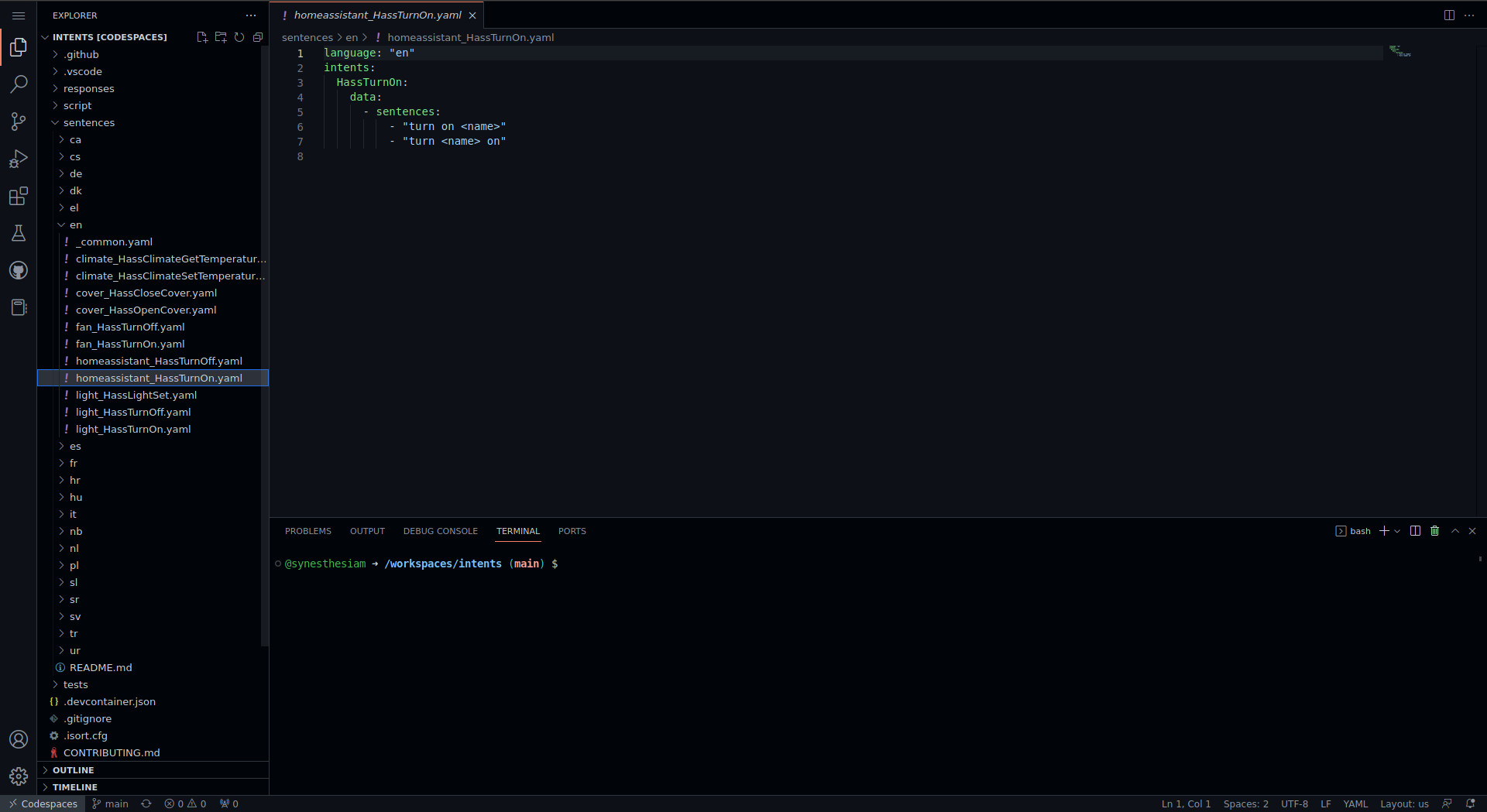
After a minute or two, your codespace will be ready with a VSCode editor: |
| 10 |
|
| 11 |
 |
| 12 |
|
| 13 |
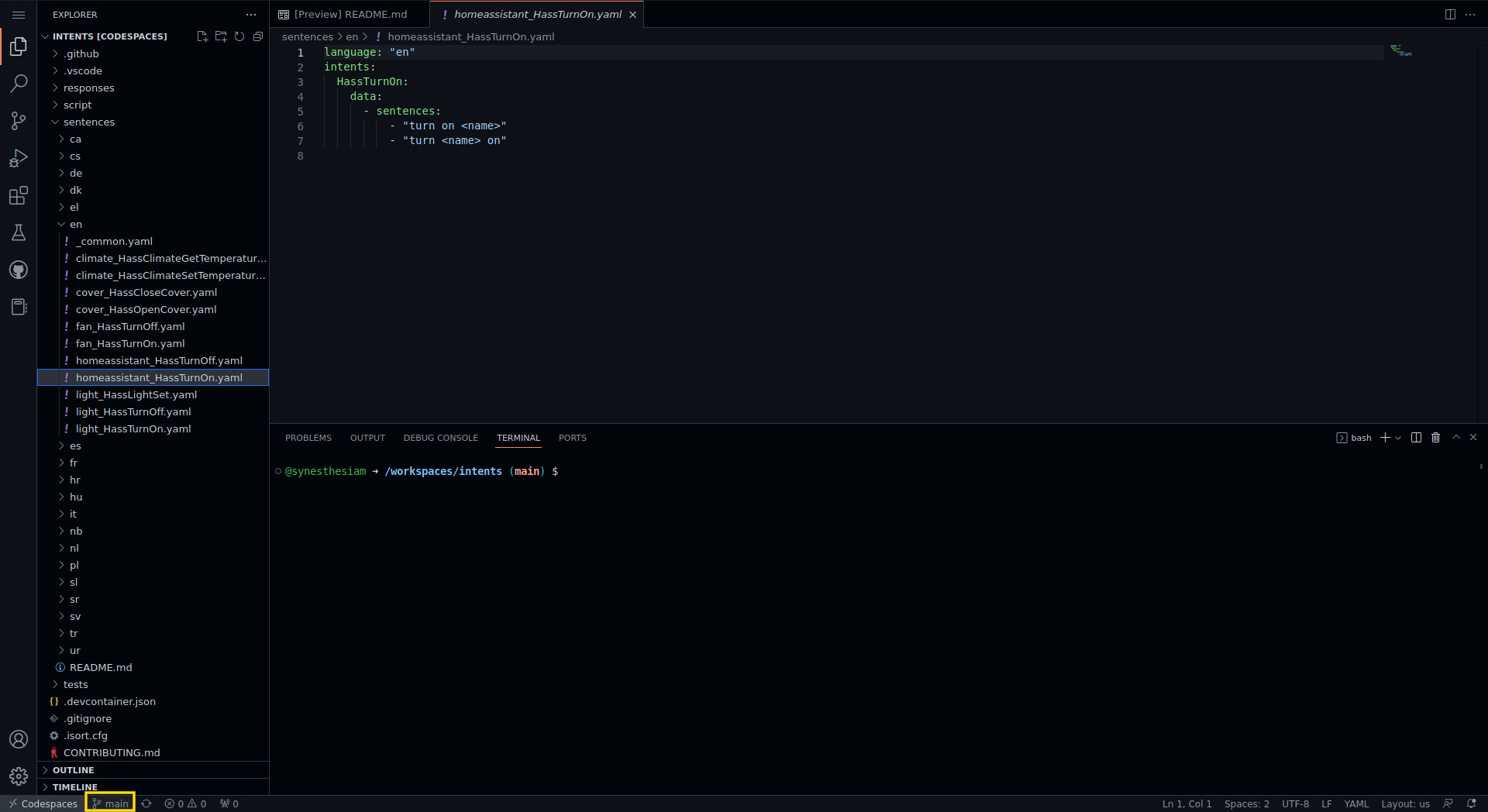
Before making changes, click on the "main" branch name at the bottom of the window: |
| 14 |
|
| 15 |
 |
| 16 |
|
| 17 |
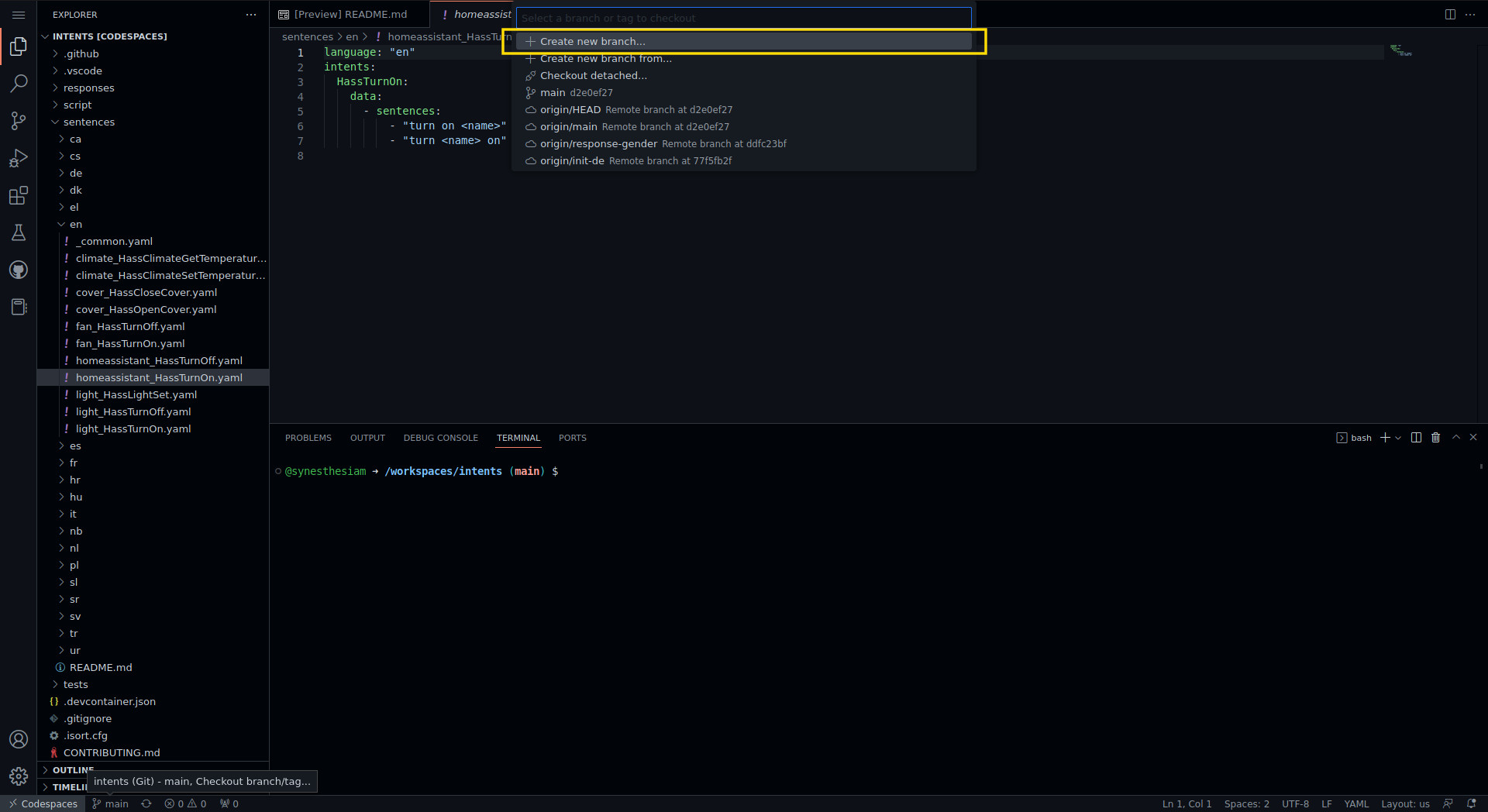
Click "Create new branch" at the top of the window: |
| 18 |
|
| 19 |
 |
| 20 |
|
| 21 |
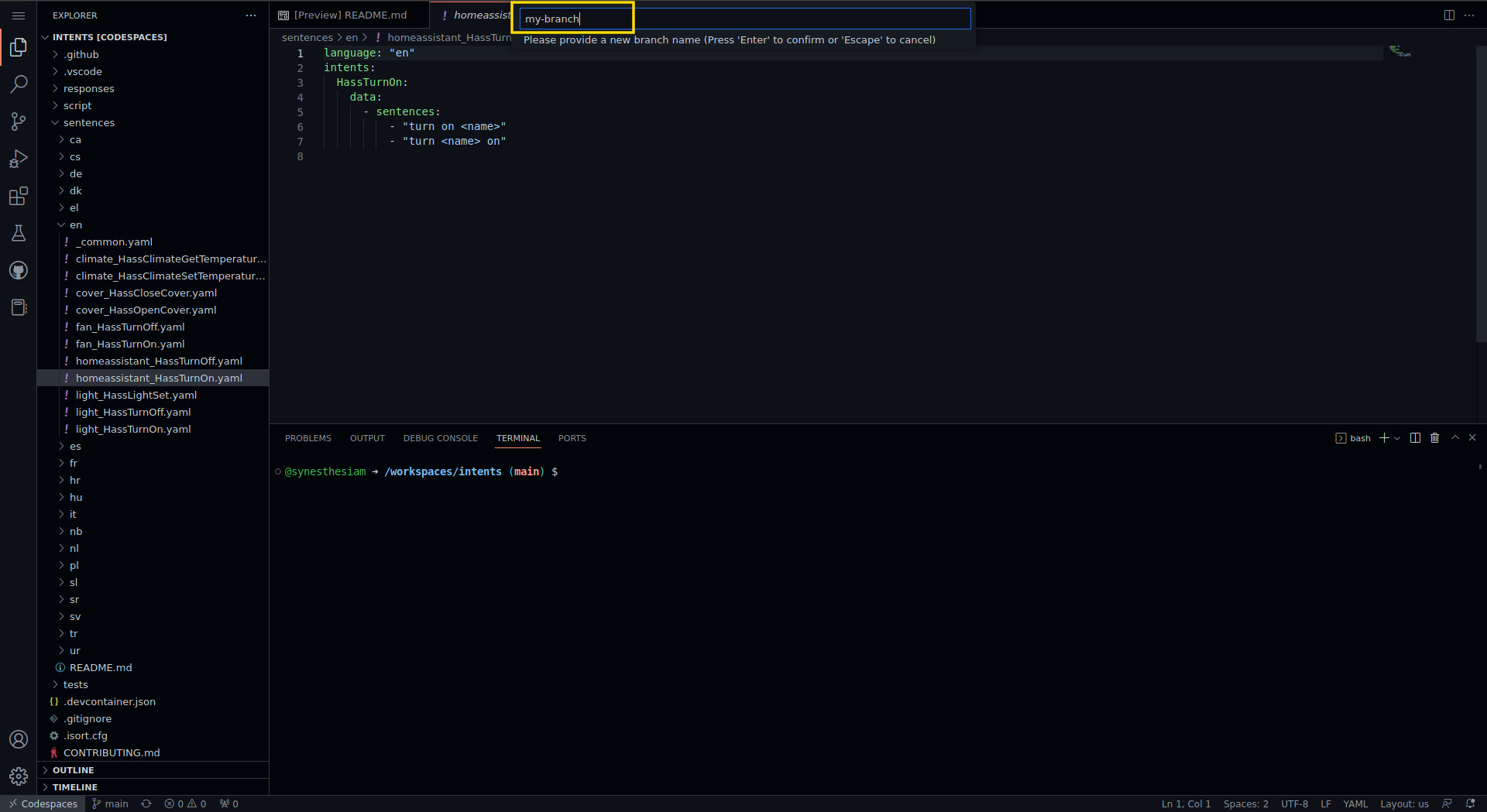
Enter a name for your branch and then press Enter: |
| 22 |
|
| 23 |
 |
| 24 |
|
| 25 |
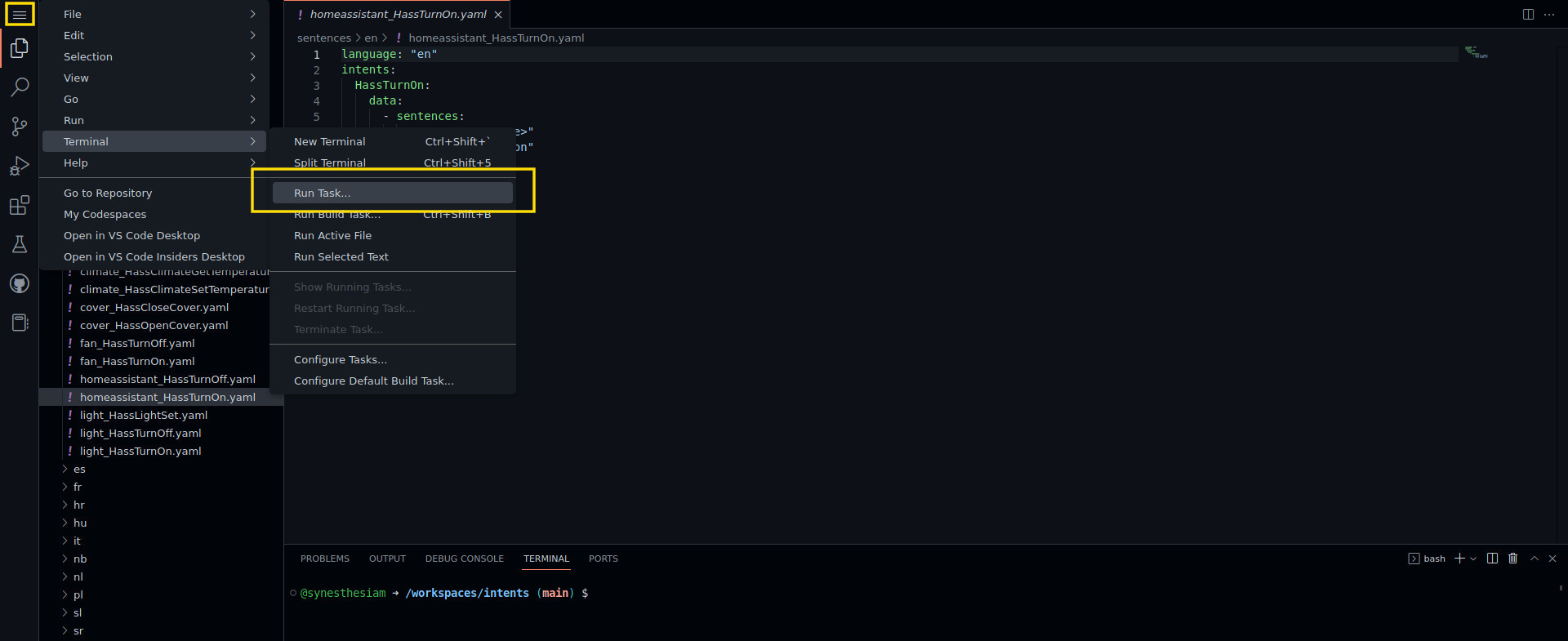
Once you've made some changes, you can run the tests right here! Choose "Terminal" and then "Run Task" from the hamburger menu (3 lines) on the left sidebar: |
| 26 |
|
| 27 |
 |
| 28 |
|
| 29 |
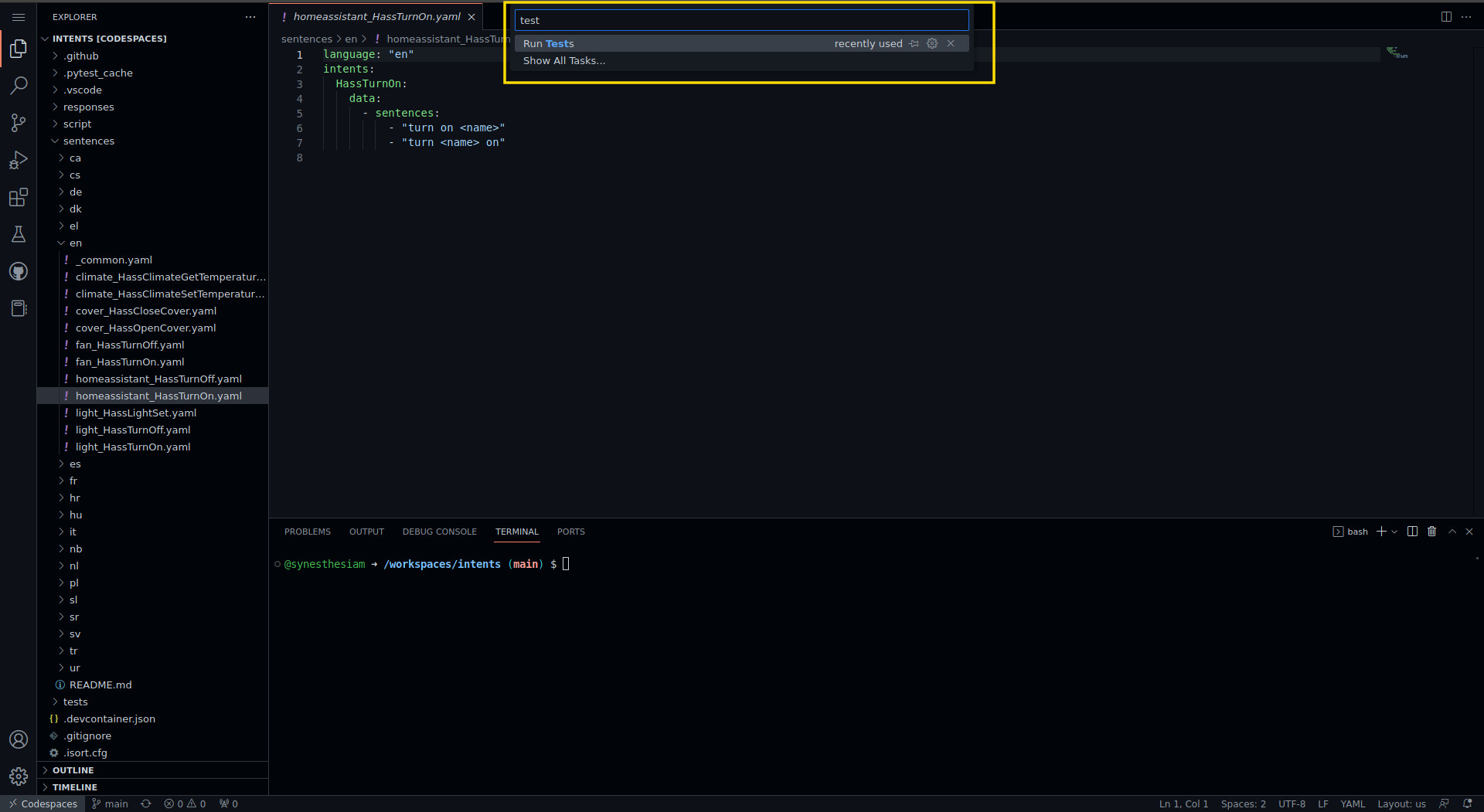
Next, type "test" into the text box at the top and click "Run tests for current file": |
| 30 |
|
| 31 |
 |
| 32 |
|
| 33 |
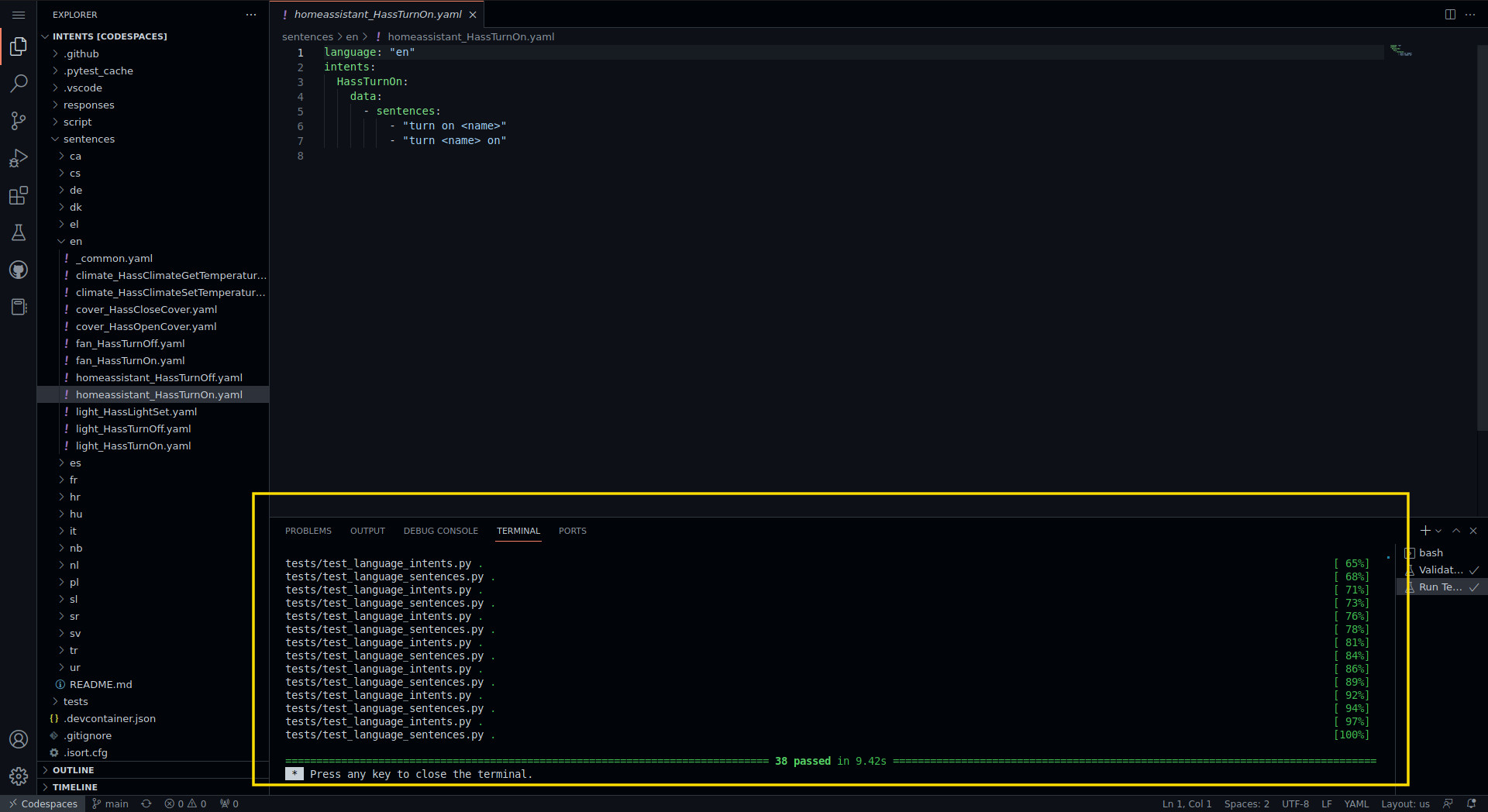
In the terminal window below, you can see if the tests were successful: |
| 34 |
|
| 35 |
 |
| 36 |
|
| 37 |
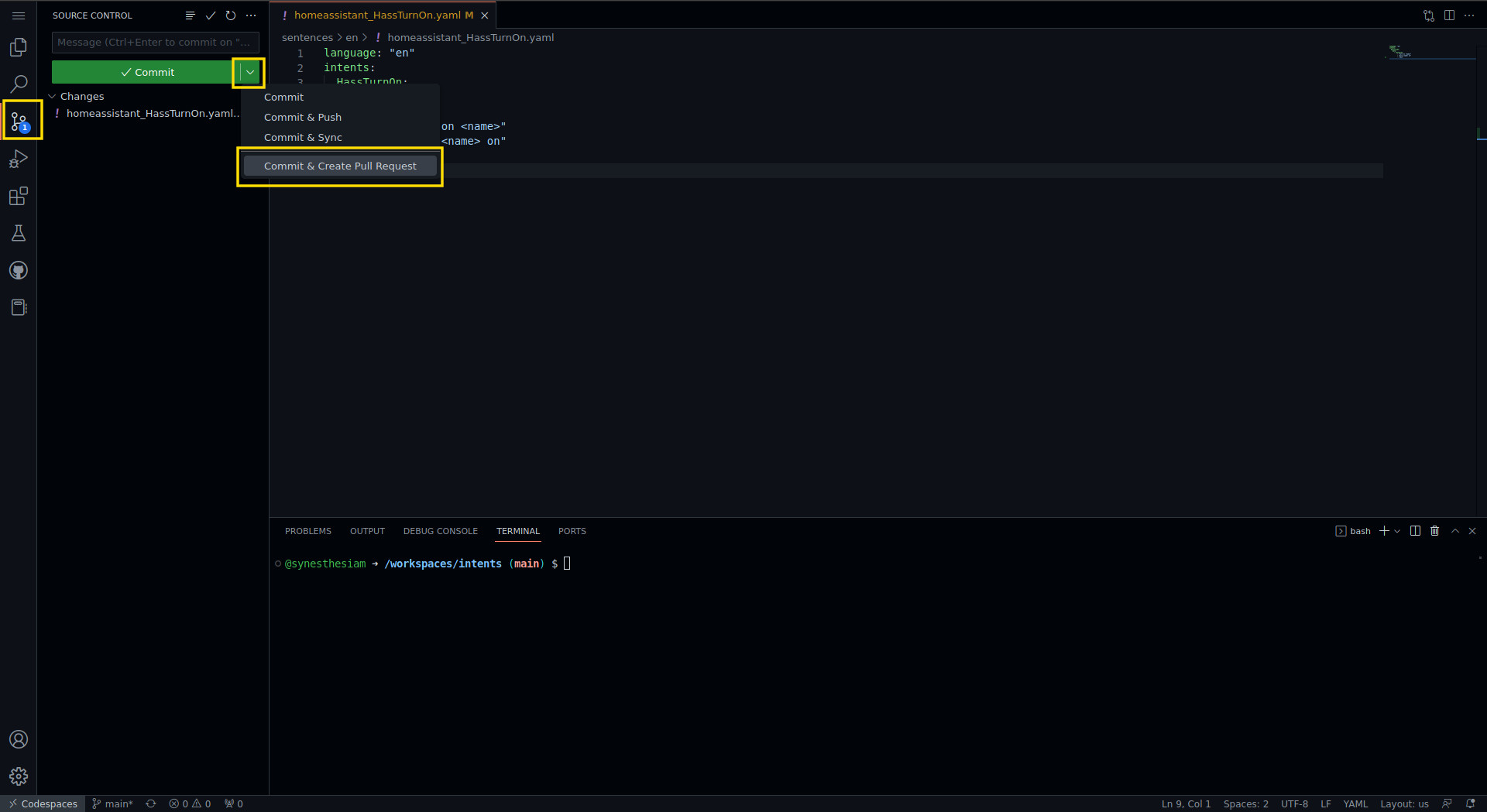
When you've finished your changes, click the source control button on the left sidebar and then "Commit & Create Pull Request": |
| 38 |
|
| 39 |
 |
| 40 |
|
| 41 |
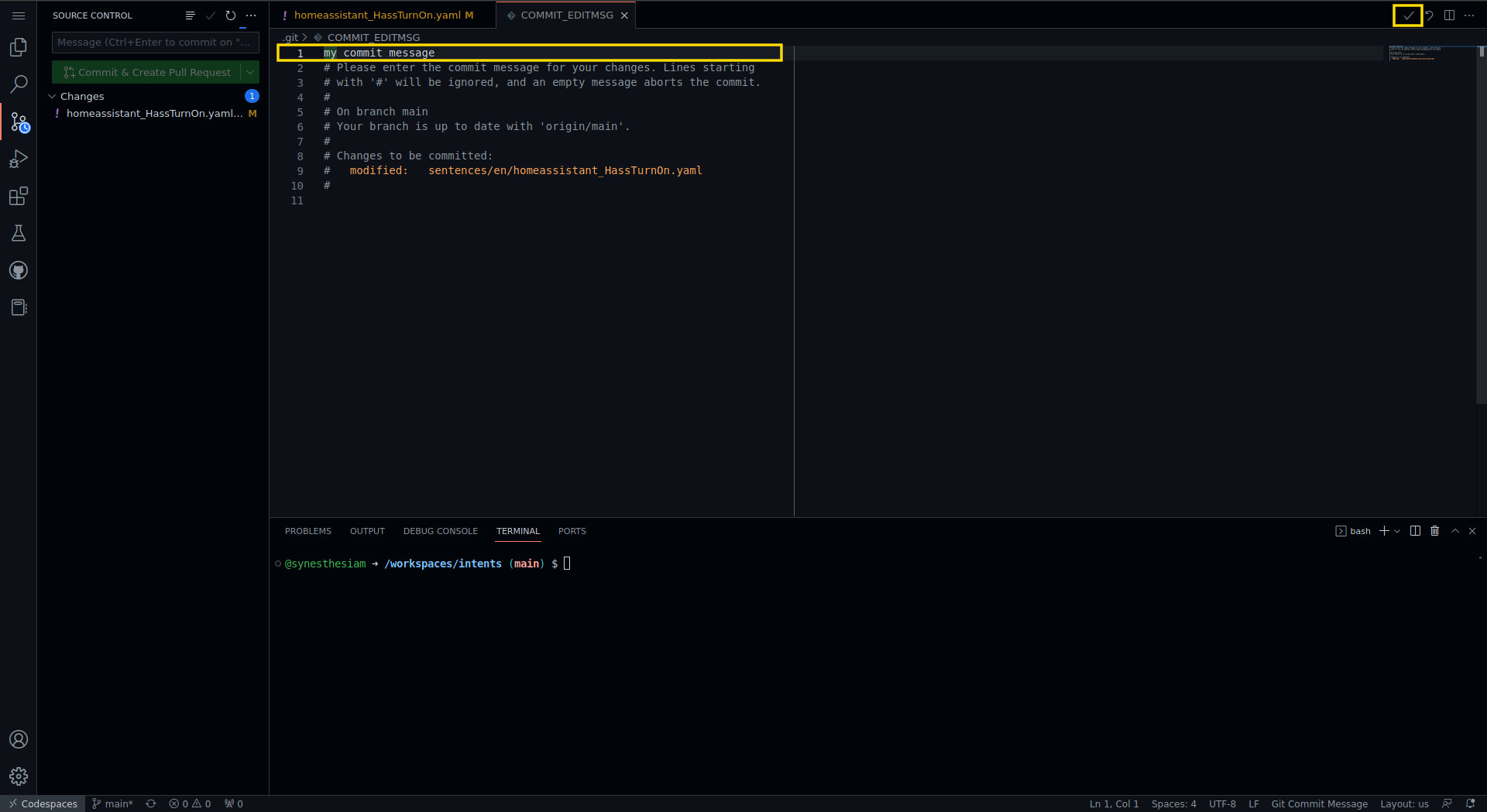
Enter a commit message and click the checkmark button to complete: |
| 42 |
|
| 43 |
 |
| 44 |
|
| 45 |
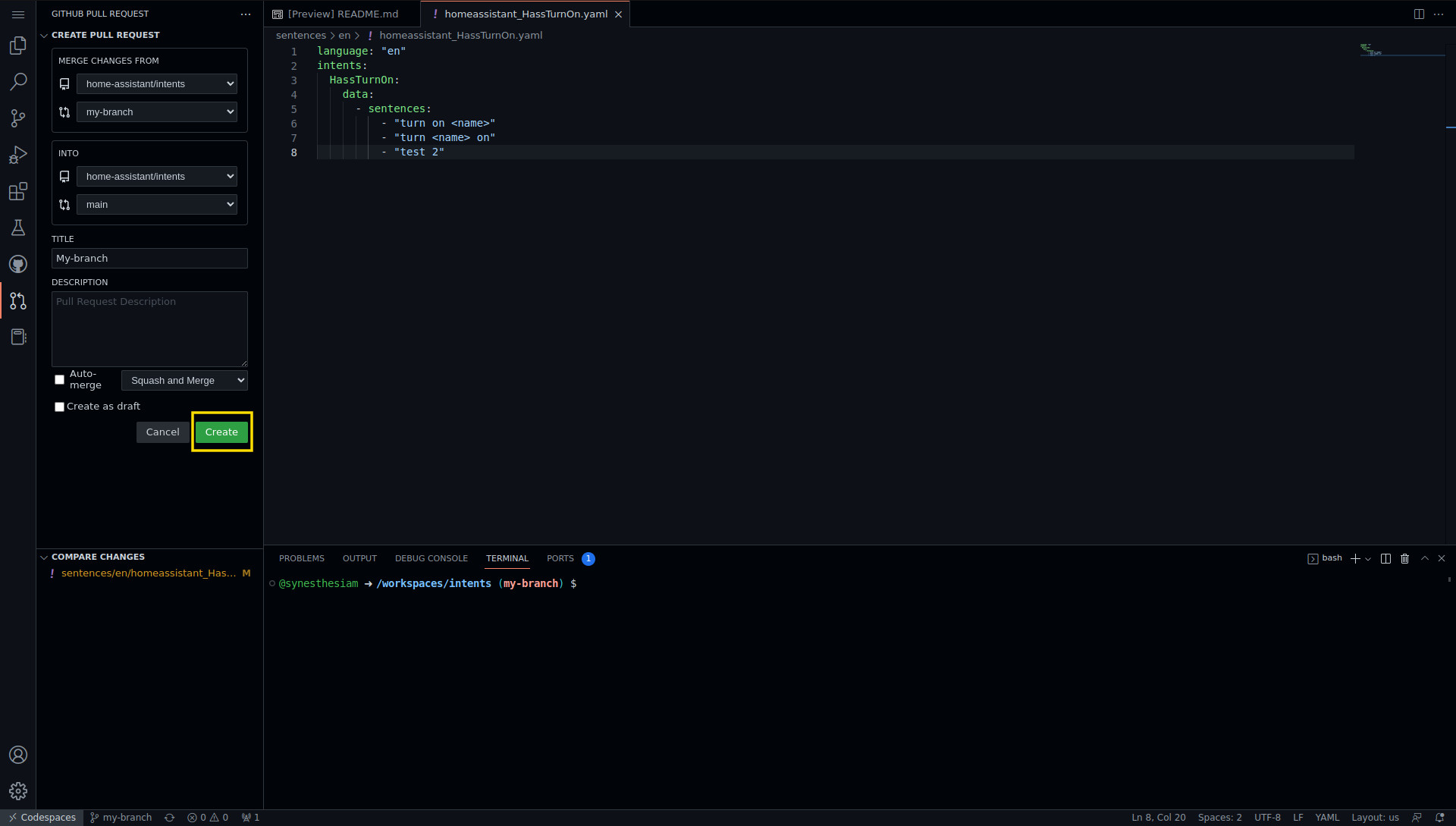
Finally, enter a title and description for your pull request in the left sidebar. Click the "Create" button to submit: |
| 46 |
|
| 47 |
|
| 48 |
 |