| 1 |
# Google Chat |
| 2 |
|
| 3 |
## URL Format |
| 4 |
|
| 5 |
Your Google Chat Incoming Webhook URL will look like this: |
| 6 |
|
| 7 |
!!! info "" |
| 8 |
<https://chat.googleapis.com/v1/spaces/__`FOO`__/messages?key=__`bar`__&token=__`baz`>__ |
| 9 |
|
| 10 |
The shoutrrr service URL should look like this: |
| 11 |
|
| 12 |
!!! info "" |
| 13 |
googlechat://chat.googleapis.com/v1/spaces/__`FOO`__/messages?key=__`bar`__&token=__`baz`__ |
| 14 |
|
| 15 |
In other words the incoming webhook URL with `https` replaced by `googlechat`. |
| 16 |
|
| 17 |
Google Chat was previously known as Hangouts Chat. Using `hangouts` in |
| 18 |
the service URL instead `googlechat` is still supported, although |
| 19 |
deprecated. |
| 20 |
|
| 21 |
## Creating an incoming webhook in Google Chat |
| 22 |
|
| 23 |
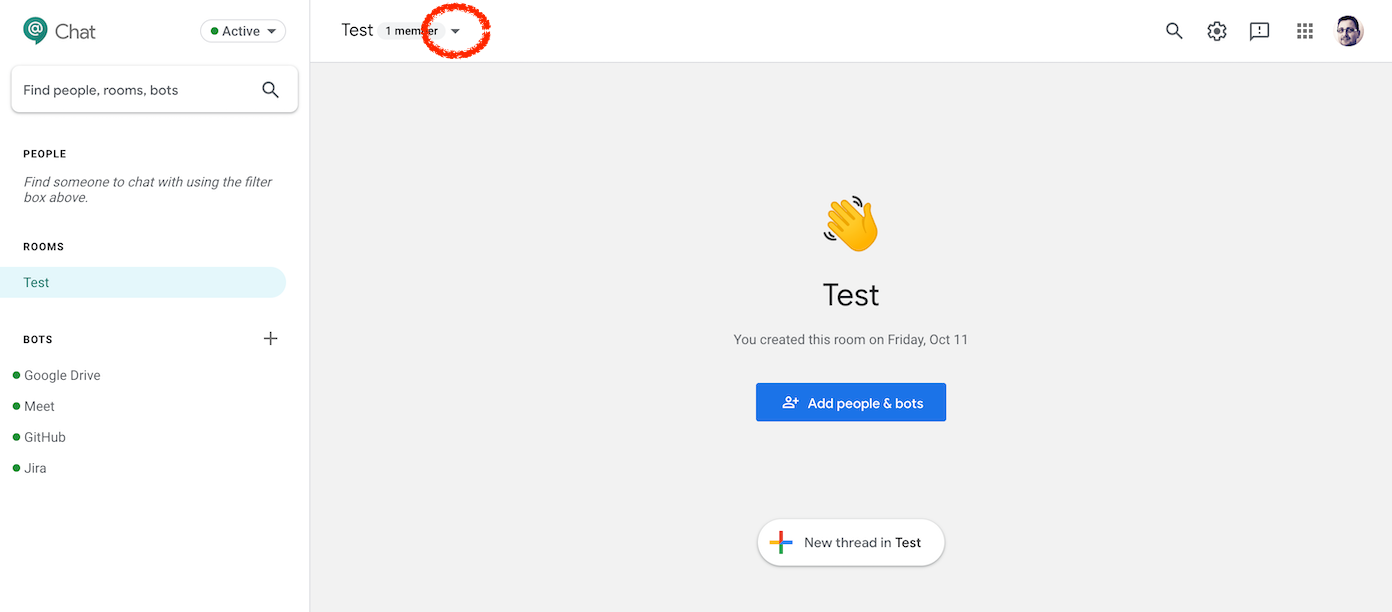
1. Open the room you would like to add Shoutrrr to and open the chat |
| 24 |
room menu. |
| 25 |
 |
| 26 |
|
| 27 |
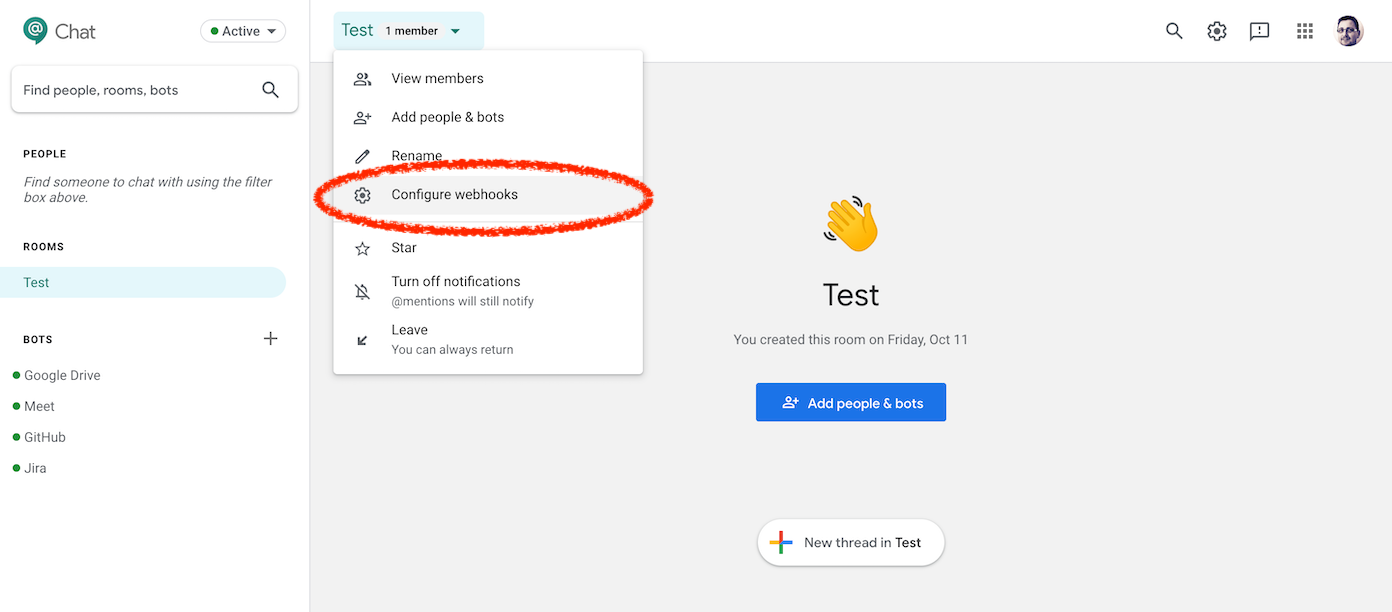
2. Then click on *Configure webhooks*. |
| 28 |
 |
| 29 |
|
| 30 |
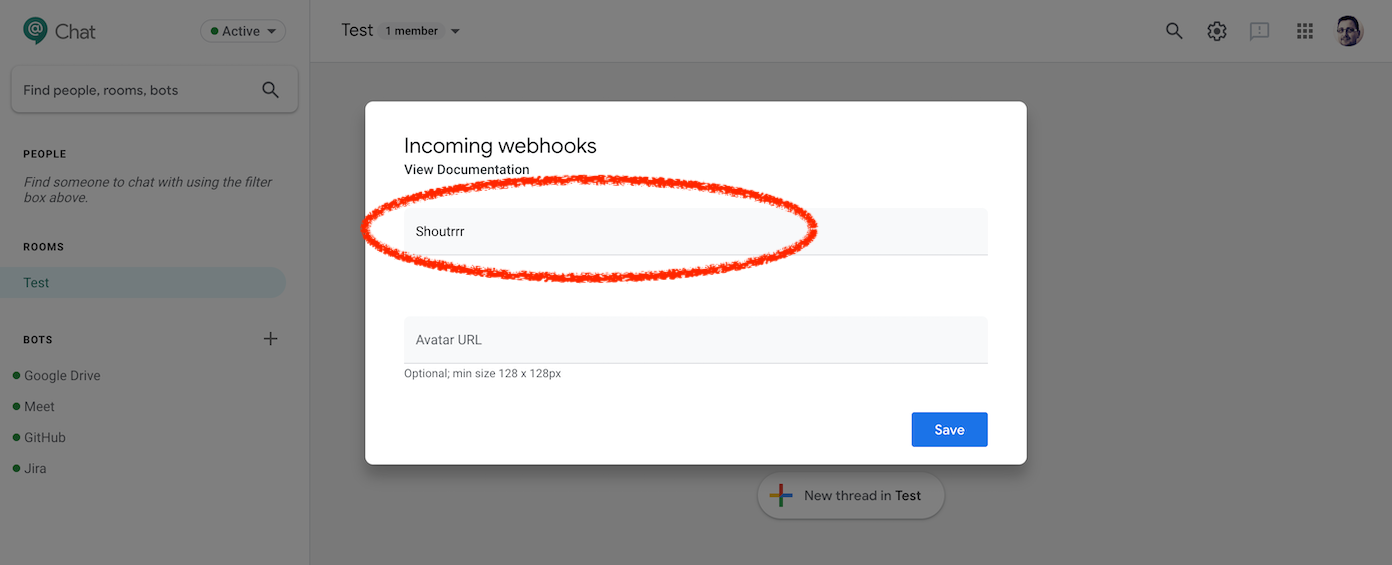
3. Name the webhook and save. |
| 31 |
 |
| 32 |
|
| 33 |
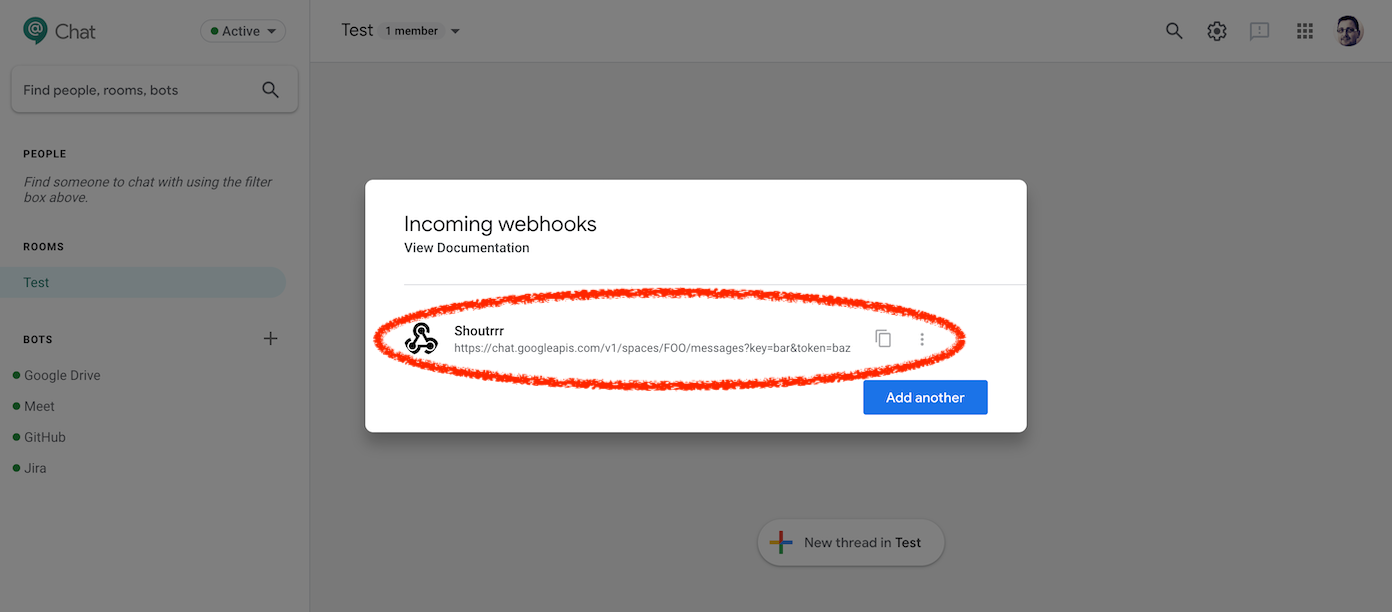
4. Copy the URL. |
| 34 |
 |
| 35 |
|
| 36 |
5. Format the service URL by replacing `https` with `googlechat`. |