| 1 |
# find/replace |
| 2 |
|
| 3 |
Furnace has a powerful find-and-replace function that can take the repetitive work out of mass editing. |
| 4 |
|
| 5 |
## find |
| 6 |
|
| 7 |
 |
| 8 |
|
| 9 |
all data that can be found within a pattern can be searched for here. |
| 10 |
|
| 11 |
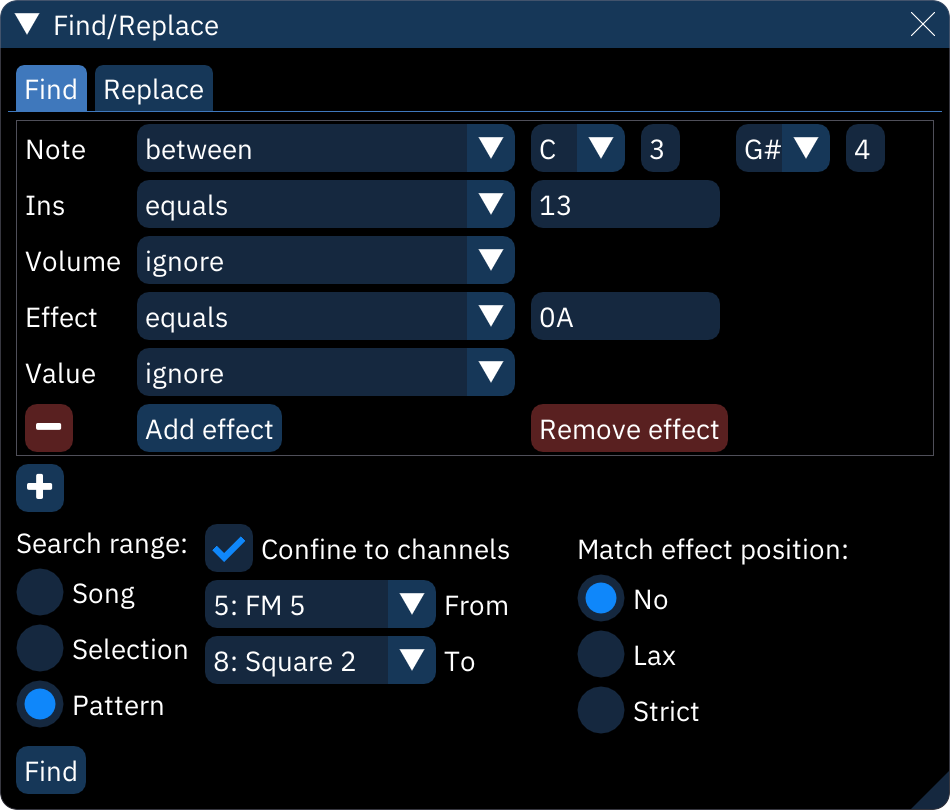
a query contains: |
| 12 |
|
| 13 |
- **Note**: note. |
| 14 |
- **Ins**: instrument. |
| 15 |
- **Volume**: volume. |
| 16 |
- **Effect**: effect type. |
| 17 |
- **Value**: effect value. |
| 18 |
|
| 19 |
all of these have the following choices for what data will be found: |
| 20 |
|
| 21 |
- **ignore**: ignore this. |
| 22 |
- **equals**: match the given value exactly. |
| 23 |
- **not equal**: match everything but the given value. |
| 24 |
- **between**: match anything between and including the given values. |
| 25 |
- **not between**: match anything outside the given range of values. |
| 26 |
- **any**: match all values. |
| 27 |
- **none**: match blanks only. |
| 28 |
|
| 29 |
the following options also are available: |
| 30 |
|
| 31 |
- **-**: remove query. if only one query exists, it is cleared. |
| 32 |
- **Add effect**: adds another Effect and Value to the query, each set representing additional effects columns. |
| 33 |
- **Remove effect**: removes last Effect and Value from the query. |
| 34 |
- **+**: adds another query. |
| 35 |
|
| 36 |
- **Search range**: restricts search range to the whole **Song**, the current **Selection**, or the currently viewed **Pattern**. |
| 37 |
- **Confine to channels**: restricts to the selected channels and the channels between them. |
| 38 |
- **Match effect position**: chooses how the order of effect types and effect values will matter when finding them. |
| 39 |
- **No**: no attention is paid to what order the effects appear in. |
| 40 |
- **Lax**: matches effects if they appear in the same order as selected above. |
| 41 |
- **Strict**: effects may only match in their corresponding effects columns. |
| 42 |
|
| 43 |
- **Find**: finds everything that matches the query and displays it in a list. |
| 44 |
- the **order**, **row**, and **channel** columns are as they say. |
| 45 |
- the **go** column of buttons will take you to the location of the result. |
| 46 |
|
| 47 |
## replace |
| 48 |
|
| 49 |
 |
| 50 |
|
| 51 |
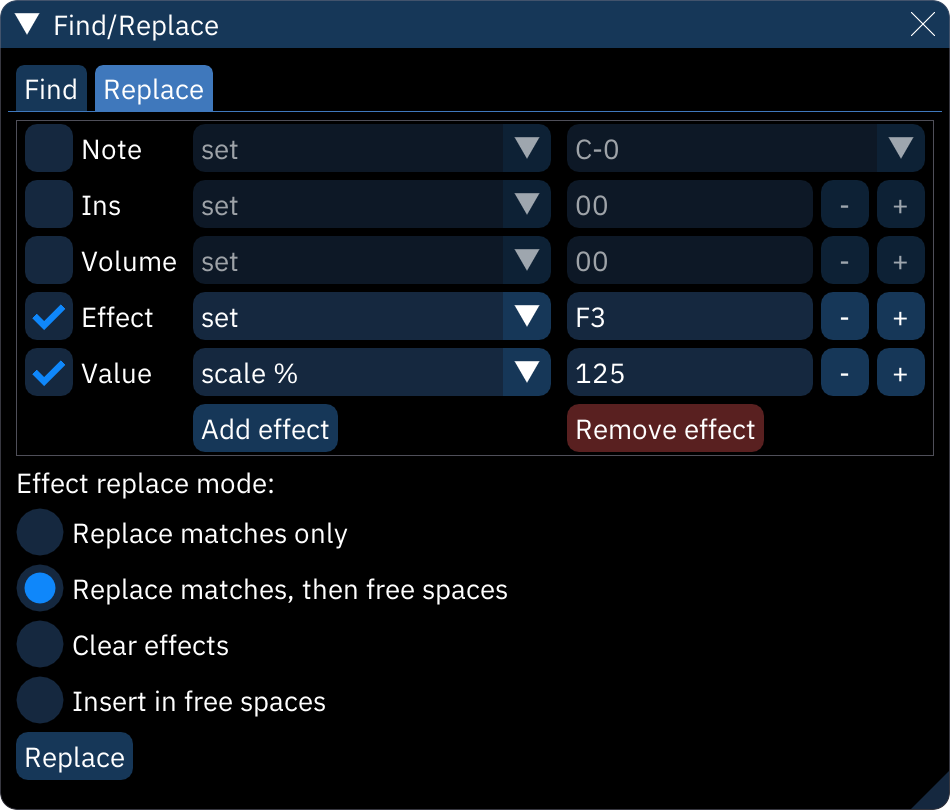
you may select any of these to replace: |
| 52 |
|
| 53 |
- **Note**: note. |
| 54 |
- **Ins**: instrument. |
| 55 |
- **Volume**: volume. |
| 56 |
- **Effect**: effect type. |
| 57 |
- **Value**: effect value. |
| 58 |
|
| 59 |
all of these have the following choices for how they alter matches: |
| 60 |
|
| 61 |
- **set**: changes matched data to this value. |
| 62 |
- **add**: adds this value to matched data. it may be negative for subtraction. notes are calculated in semitones. |
| 63 |
- **add (overflow)**: as "add" above, but values will wrap around; for example, adding 13 to `FF` will result in `0C`. |
| 64 |
- **scale**: multiply value to this percentage; for example, scaling `1A` by `150` results in `27`. not available for "note". |
| 65 |
- **clear**: erases matched data. |
| 66 |
|
| 67 |
the following options also are available: |
| 68 |
|
| 69 |
- **Add effect**: adds another Effect and Value to be replaced according to how they were found. |
| 70 |
- **Remove effect**: removes last Effect and Value. |
| 71 |
- **Effect replace mode**: |
| 72 |
- **Replace matches only**: replaces only the effect columns that match. |
| 73 |
- **Replace matches, then free spaces**: replaces matched effects; if there are effect columns without data, those will be filled in with the additional effect replacements. |
| 74 |
- **Clear effects**: overwrites effect data with replacement effects. |
| 75 |
- **Insert in free spaces**: replaces nothing; replacement effects are inserted in free effects columns when available. |
| 76 |
|
| 77 |
- **Replace**: performs the query specified in the Find tab and replaces it as directed. |