| 1 |
# chip manager |
| 2 |
|
| 3 |
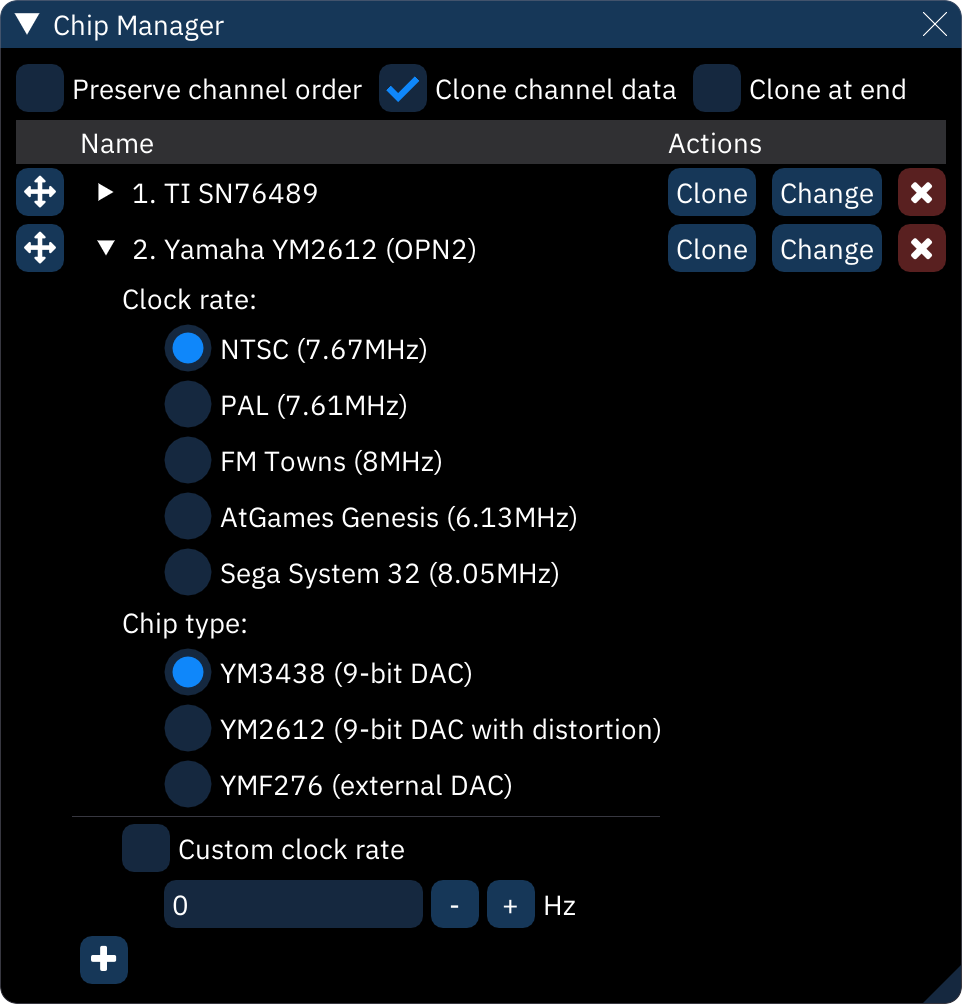
the **chip manager** window allows you to manage chips, including adding, changing, moving or removing them. |
| 4 |
|
| 5 |
 |
| 6 |
|
| 7 |
**Preserve channel order**: make existing pattern data stay in place even when chips are rearranged. when turned off, pattern data will be arranged to match (the default, and usually desired behavior). |
| 8 |
|
| 9 |
**Clone channel data**: when cloning chips, also copy patterns, pattern names, channel names and other parameters to the clone. |
| 10 |
|
| 11 |
**Clone at end**: instead of inserting the clone directly after the cloned chip, add it to the end. |
| 12 |
|
| 13 |
to move a chip around, click and drag the  button to the left. |
| 14 |
|
| 15 |
to duplicate a chip, click the **Clone** button. |
| 16 |
|
| 17 |
to replace a chip with a different one, click the **Change** button. this will display the chip selector. |
| 18 |
|
| 19 |
to remove a chip, click the  button. |
| 20 |
|
| 21 |
click on a chip's name to open chip configuration. this allows you to change chip options, such as clock rate, chip type and so on. |