| 1 |
# pattern |
| 2 |
|
| 3 |
the pattern view allows you to edit the song's patterns. |
| 4 |
|
| 5 |
 |
| 6 |
|
| 7 |
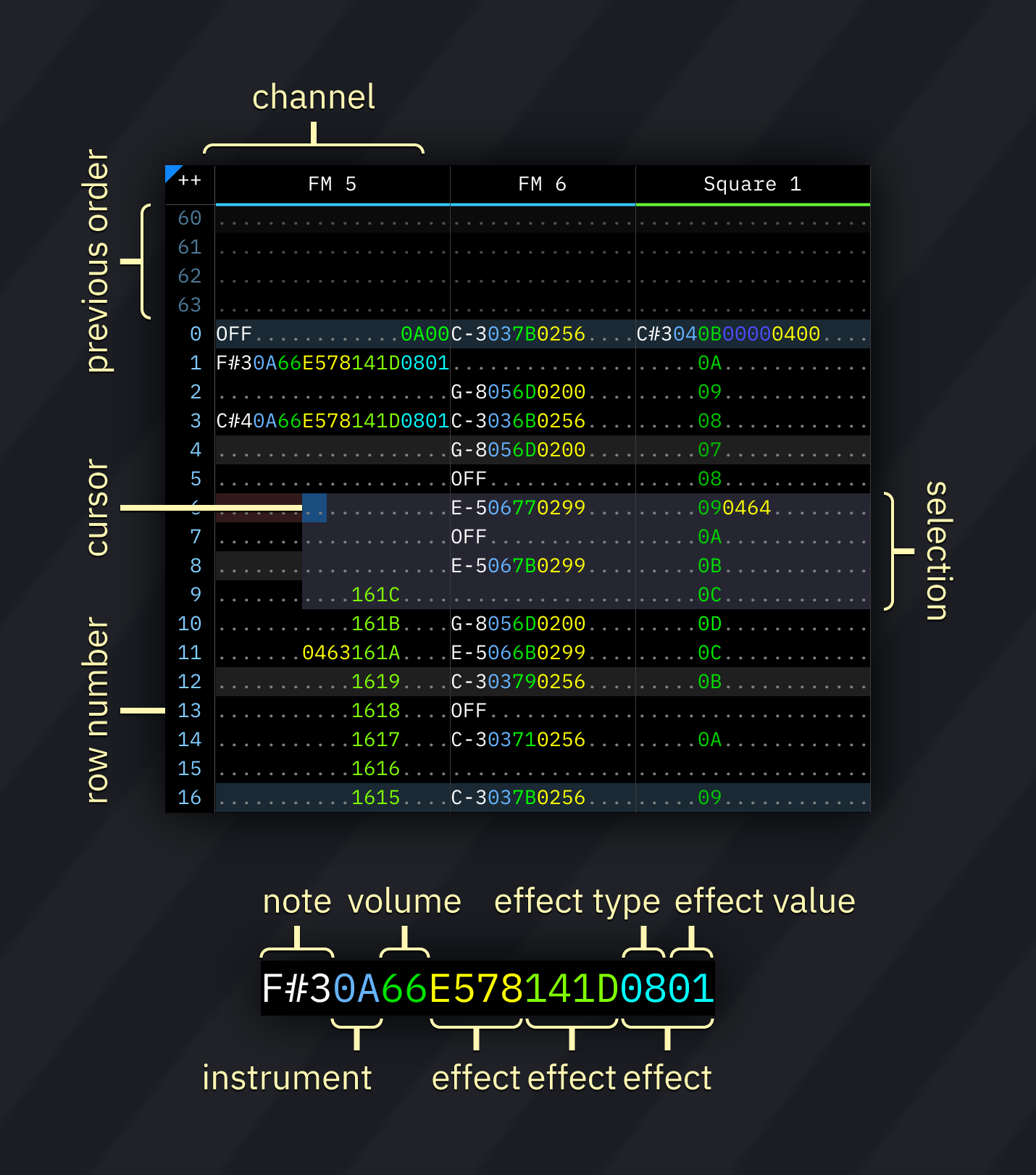
a pattern consists of columns ("channels") and numbered rows. |
| 8 |
each column has several subcolumns in this order: |
| 9 |
|
| 10 |
1. note |
| 11 |
2. instrument |
| 12 |
3. volume |
| 13 |
4. effects, split into effect type and effect value |
| 14 |
|
| 15 |
all columns are represented in hexadecimal, except for the note column. |
| 16 |
|
| 17 |
row highlights show beats and measures, and are configured in the [the Speed window](../2-interface/song-info.md). |
| 18 |
|
| 19 |
|
| 20 |
|
| 21 |
## cursor and selection |
| 22 |
|
| 23 |
you may change the cursor position by clicking anywhere on the pattern. |
| 24 |
|
| 25 |
to select an area, press and hold the left mouse button. then drag the mouse and release the button to finish selection. |
| 26 |
|
| 27 |
right-clicking within the pattern view brings up a pop-up menu with most options from the [edit menu](../2-interface/menu-bar.md). |
| 28 |
|
| 29 |
|
| 30 |
|
| 31 |
## channel bar |
| 32 |
|
| 33 |
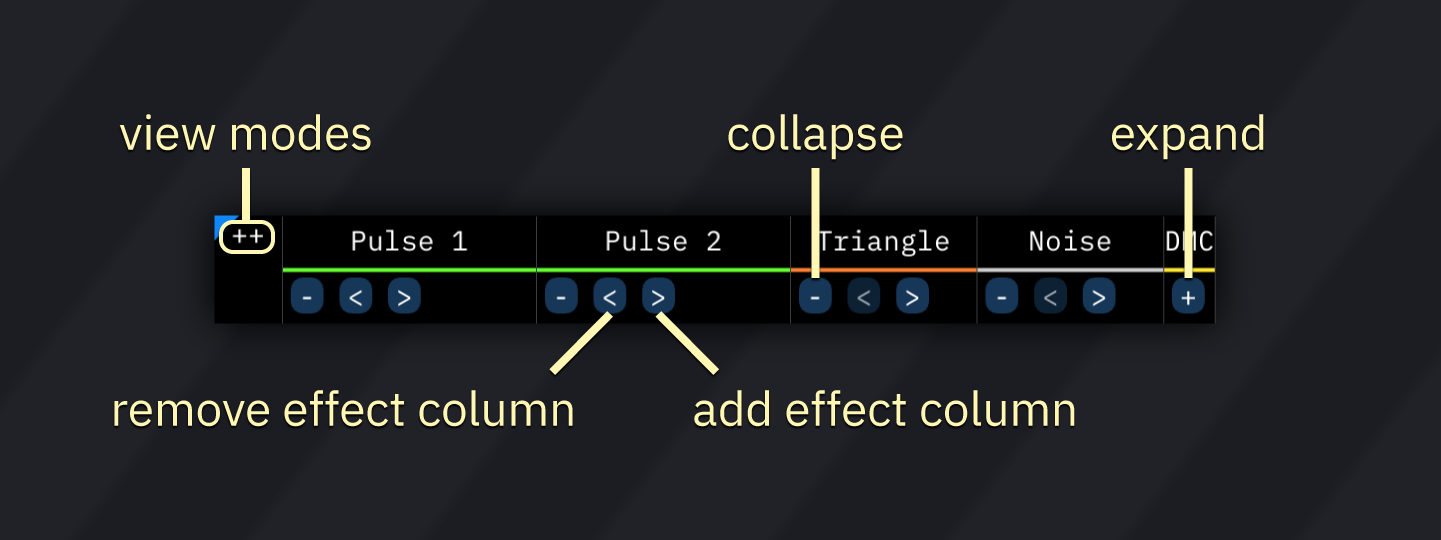
using the channel bar, you may adjust several aspects of the channel display. |
| 34 |
|
| 35 |
 |
| 36 |
|
| 37 |
clicking on a channel name mutes that channel. |
| 38 |
|
| 39 |
double-clicking or right-clicking it enables solo mode, in which only that channel will be audible. |
| 40 |
|
| 41 |
clicking the `++` at the top left corner of the pattern view pops up a small menu to set view modes: |
| 42 |
- **Effect columns/collapse**: displays extra options for collapsing channels and adding/removing effect columns: |
| 43 |
- **-**: collapse visible columns. changes to **+** when columns are hidden; click to expand them. |
| 44 |
- **<**: disables the last effect column and hides it. effects are not deleted... |
| 45 |
- **>**: adds an effect column. if one previously existed, its contents will be preserved. |
| 46 |
- **Pattern names**: displays pattern names (per channel). pattern names are also visible when hovering over a pattern in the order list. |
| 47 |
- **Channel group hints**: display indicators when channels are paired in some way (e.g. OPL3 4-op mode). |
| 48 |
- **Visualizer**: during playback, show visual effects in the pattern view. |
| 49 |
- also can be toggled by right-clicking on the `++` button. |
| 50 |
- **Channel status**: displays icons that indicate activity in the channel. see the "channel status" section below. |
| 51 |
|
| 52 |
to rename and/or hide channels, open [the Channels window](../8-advanced/channels.md) via the window menu. |
| 53 |
|
| 54 |
### channel status |
| 55 |
|
| 56 |
- note status: |
| 57 |
-  note off |
| 58 |
-  note on |
| 59 |
-  note on but macro released (`REL`) |
| 60 |
-  note released (`===`) |
| 61 |
- pitch alteration: |
| 62 |
-  nothing |
| 63 |
-  pitch slide up |
| 64 |
-  pitch slide down |
| 65 |
-  portamento |
| 66 |
-  arpeggio |
| 67 |
- volume alteration: |
| 68 |
-  nothing |
| 69 |
-  volume slide up |
| 70 |
-  volume slide down |
| 71 |
-  tremolo |
| 72 |
- other icons may be present depending on the used chips. |
| 73 |
|
| 74 |
|
| 75 |
## input |
| 76 |
|
| 77 |
### note input |
| 78 |
|
| 79 |
 |
| 80 |
|
| 81 |
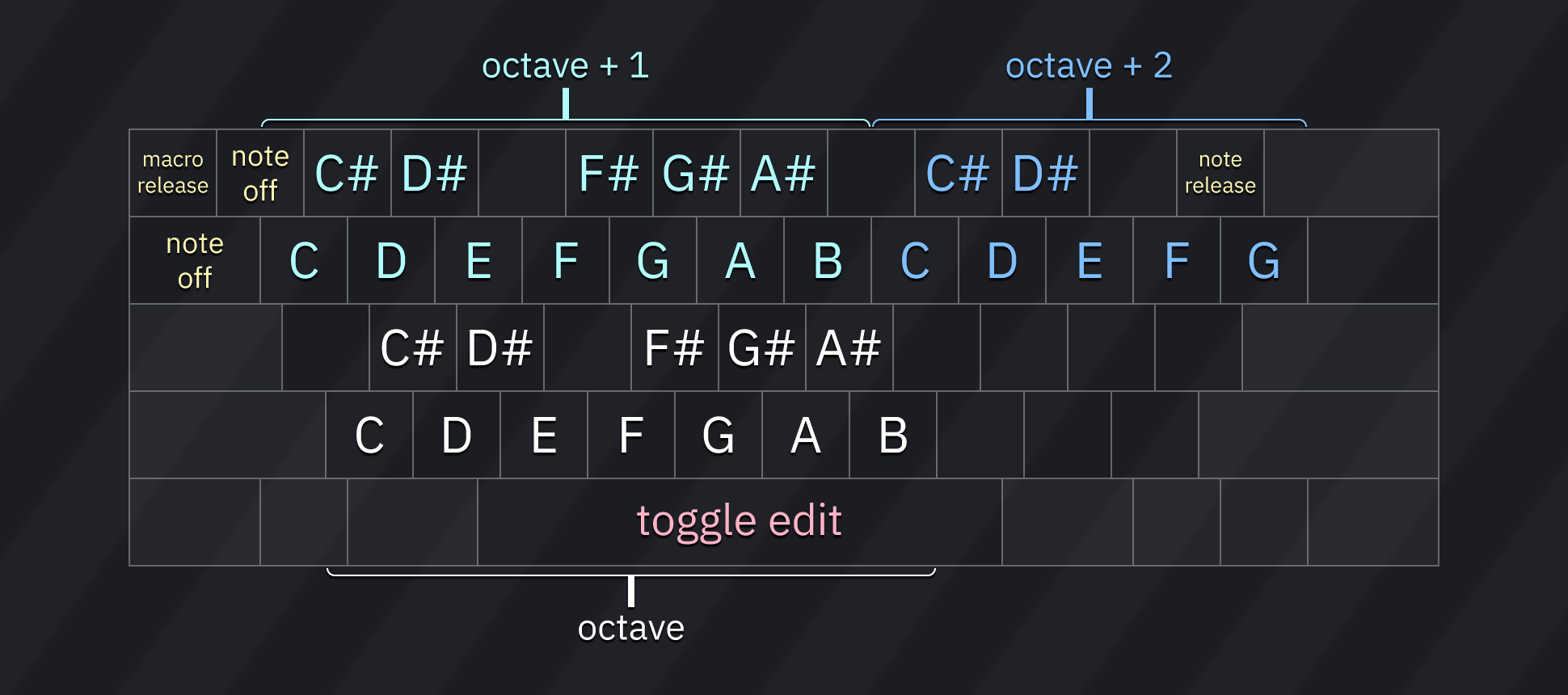
- pressing any of the respective keys will insert a note at the cursor's location, then advance to the next row (or otherwise according to the Edit Step.) |
| 82 |
- **note off** (`OFF`) turns off the last played note in that channel (key off for FM/hardware envelope; note cut otherwise). |
| 83 |
- **note release** (`===`) triggers macro release (and in FM/hardware envelope channels it also triggers key off). |
| 84 |
- **macro release** (`REL`) does the same as above, but does not trigger key off in FM/hardware envelope channels. |
| 85 |
- **toggle edit** enables and disables editing. when editing is enabled, the cursor's row will be shaded red. |
| 86 |
|
| 87 |
### instrument/volume input |
| 88 |
|
| 89 |
type any hexadecimal number (0-9 and A-F). the cursor will move by the Edit Step when a suitable value is entered. |
| 90 |
|
| 91 |
### effect input |
| 92 |
|
| 93 |
works like the instrument/volume input. |
| 94 |
|
| 95 |
each effect column has two subcolumns: effect and effect value. |
| 96 |
if the effect value is not present, it is treated as `00`. |
| 97 |
|
| 98 |
most effects run until canceled using an effect of the same type with effect value `00`, with some exceptions. |
| 99 |
|
| 100 |
here's [a list of effect types](effects.md). |
| 101 |
|
| 102 |
|
| 103 |
|
| 104 |
## keyboard shortcuts |
| 105 |
|
| 106 |
these are the default key functions. all keys are configurable in the Keyboard tab of the Settings window. |
| 107 |
|
| 108 |
key | action |
| 109 |
------------|----------------------------------------------------------------- |
| 110 |
Up/Down | move cursor up/down by one row or the Edit Step (configurable) |
| 111 |
Left/Right | move cursor left/right |
| 112 |
PageUp | move cursor up by 16 rows |
| 113 |
PageDown | move cursor down by 16 rows |
| 114 |
Home | move cursor to beginning of pattern |
| 115 |
End | move cursor to end of pattern |
| 116 |
Shift-Home | move cursor up by exactly one row, overriding Edit Step |
| 117 |
Shift-End | move cursor down by exactly one row, overriding Edit Step |
| 118 |
Shift-Up | expand selection upwards |
| 119 |
Shift-Down | expand selection downwards |
| 120 |
Shift-Left | expand selection to the left |
| 121 |
Shift-Right | expand selection to the right |
| 122 |
Alt-Up | move selection up by one |
| 123 |
Alt-Down | move selection down by one |
| 124 |
Alt-Left | move selection to previous channel |
| 125 |
Alt-Right | move selection to next channel |
| 126 |
Backspace | delete note at cursor and/or pull pattern upwards (configurable) |
| 127 |
Delete | delete selection |
| 128 |
Insert | create blank row at cursor position and push pattern |
| 129 |
Ctrl-A | auto-expand selection (select all) |
| 130 |
Ctrl-X | cut selection |
| 131 |
Ctrl-C | copy selection |
| 132 |
Ctrl-V | paste selection |
| 133 |
Ctrl-Z | undo |
| 134 |
Ctrl-Y | redo |
| 135 |
Ctrl-F1 | transpose selection (-1 semitone) |
| 136 |
Ctrl-F2 | transpose selection (+1 semitone) |
| 137 |
Ctrl-F3 | transpose selection (-1 octave) |
| 138 |
Ctrl-F4 | transpose selection (+1 octave) |
| 139 |
Space | toggle note input (edit) |