| 1 |
# asset list |
| 2 |
|
| 3 |
an "asset" refers to an instrument, wavetable or sample. |
| 4 |
|
| 5 |
## instrument list |
| 6 |
|
| 7 |
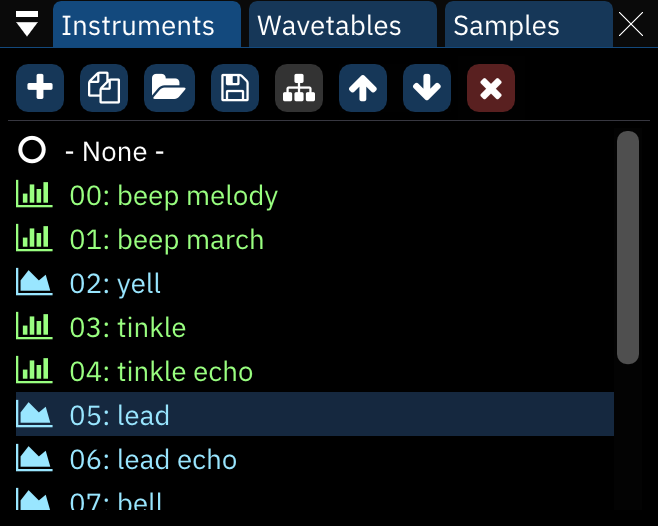 |
| 8 |
|
| 9 |
buttons from left to right: |
| 10 |
|
| 11 |
- **Add**: pops up a menu to select which type of instrument to add. if only one instrument type is available, the menu is skipped. |
| 12 |
- if the "Display instrument type menu when adding instrument" setting is disabled, this skips the menu and creates an instrument according to the chip under the cursor. |
| 13 |
- right-clicking always brings up the menu. |
| 14 |
- **Duplicate**: duplicates the currently selected instrument. |
| 15 |
- **Open**: brings up a file dialog to load a file as a new instrument at the end of the list. |
| 16 |
- if the file is an instrument bank, a dialog will appear to select which instruments to load. |
| 17 |
- **Save**: brings up a file dialog to save the currently selected instrument. |
| 18 |
- instruments are saved as Furnace instrument (.fui) files. |
| 19 |
- right-clicking brings up a menu with the following options: |
| 20 |
- **save instrument as .dmp...**: saves the selected instrument in DefleMask format. |
| 21 |
- **save all instruments...**: saves all instruments to the selected folder as .fui files. |
| 22 |
- **Toggle folders/standard view**: enables (and disables) folder view, explained below. |
| 23 |
- **Move up**: moves the currently selected instrument up in the list. pattern data will automatically be adjusted to match. |
| 24 |
- **Move down**: same, but downward. |
| 25 |
- **Delete**: deletes the currently selected instrument. pattern data will be adjusted to use the next available instrument in the list. |
| 26 |
|
| 27 |
instruments may be dragged and dropped to reorder them. this will change instrument numbers throughout the module accordingly. |
| 28 |
|
| 29 |
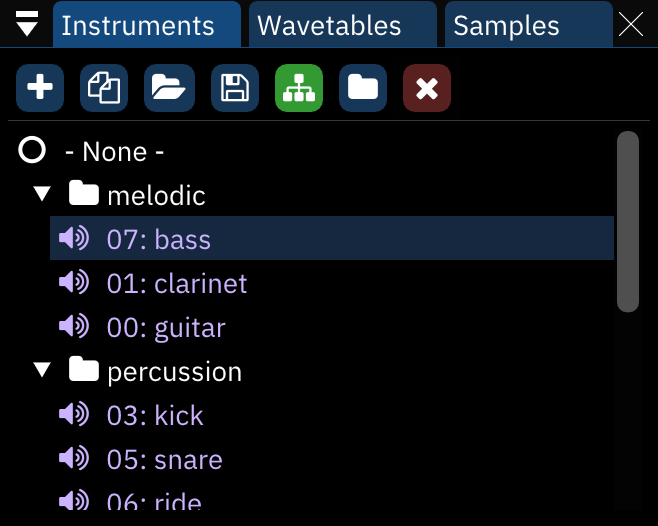
## folder view |
| 30 |
|
| 31 |
 |
| 32 |
|
| 33 |
in folder view, the "Move up" and "Move down buttons disappear and a new one appears: |
| 34 |
- **New folder**: creates a new folder. |
| 35 |
|
| 36 |
assets may be dragged from folder to folder and even rearranged within folders without changing their associated numbers. |
| 37 |
|
| 38 |
right-clicking on a folder allows one to rename or delete it. deleting a folder does not remove the instruments in it. |
| 39 |
|
| 40 |
## wavetable list |
| 41 |
|
| 42 |
 |
| 43 |
|
| 44 |
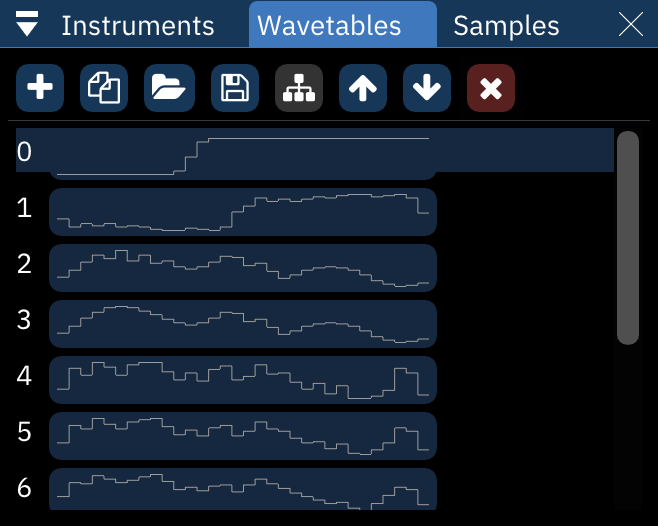
everything from the instrument list applies here also, with one major difference: moving waves around with the buttons or dragging them will change their associated numbers in the list but **not** in pattern or instrument data. be careful! |
| 45 |
|
| 46 |
wavetables are saved as Furnace wavetable (.fuw) files. |
| 47 |
|
| 48 |
right-clicking the Save button brings up a menu with the following options: |
| 49 |
- **save wavetable as .dmw...**: saves the selected wavetable in DefleMask format. |
| 50 |
- **save raw wavetable...**: saves the selected wavetable as raw data. |
| 51 |
- **save all wavetables...**: saves all wavetables to the selected folder as .fuw files. |
| 52 |
|
| 53 |
## sample list |
| 54 |
|
| 55 |
 |
| 56 |
|
| 57 |
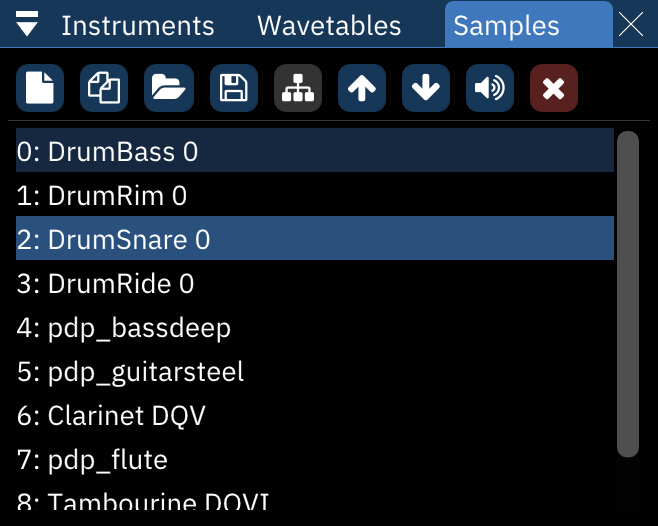
everything from the wavetables list applies here also, with the addition of one button before the Delete button: |
| 58 |
- **Preview**: plays the selected sample at its default note. |
| 59 |
- right-clicking stops the sample playback. |
| 60 |
|
| 61 |
samples are saved as standard wave (.wav) files. |
| 62 |
|
| 63 |
right-clicking the Save button brings up a menu with the following options: |
| 64 |
- **save raw sample...**: saves the selected sample as raw data. |
| 65 |
- **save all samples...**: saves all samples to the selected folder as .wav files. |
| 66 |
|
| 67 |
right-clicking a sample in the list brings up a menu: |
| 68 |
- **make instrument**: creates a new instrument which is set to use the selected sample. |
| 69 |
- **make me a drum kit**: allows you to instantly create a drum kit using all the samples in the list. see the next section for more information. |
| 70 |
- **duplicate**: makes a copy of the selected sample. |
| 71 |
- **replace...**: opens a file dialog to choose a replacement sample. |
| 72 |
- **save**: opens a file dialog to choose where to save the sample. |
| 73 |
- **delete**: removes the sample. |
| 74 |
|
| 75 |
### make me a drum kit |
| 76 |
|
| 77 |
I have added this option to make it easier for you to create a drum kit. |
| 78 |
it puts all the samples into a new instrument with sample map. |
| 79 |
|
| 80 |
after selecting this option, a list of parameters appears: |
| 81 |
|
| 82 |
- **Drum kit mode**: select how to arrange the samples in the sample map. |
| 83 |
- **Normal**: put all samples from the starting octave onwards. |
| 84 |
- **12 samples per octave**: map the first 12 samples to all octaves, DefleMask-style. |
| 85 |
- **Starting octave**: change the octave where the first sample will be at. |
| 86 |
|
| 87 |
following that is a list of viable instrument types. click on one of them to proceed with drum kit creation! |