# Slack Guides
## Overview
Guides for setting up the [Slack](../../services/chat/slack/index.md) service, including obtaining tokens (Bot API or Webhook) and channel IDs. The Slack service supports customization options like bot name, icon, color, title, and threading.
## Getting a Token
To send messages, use either a Bot API token (preferred for full features) or a Webhook token. Only Webhook tokens allow customizing the bot name or icon without the Bot API.
### Bot API (Preferred)
1. Create a new App for your bot using the [Basic app setup guide](https://api.slack.com/authentication/basics).
2. Install the App into your workspace ([Slack installation guide](https://api.slack.com/authentication/basics#installing)).
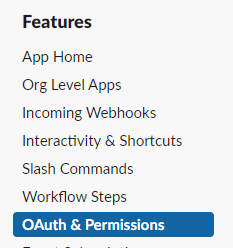
3. From [Apps](https://api.slack.com/apps), select your new App and go to **OAuth & Permissions**.
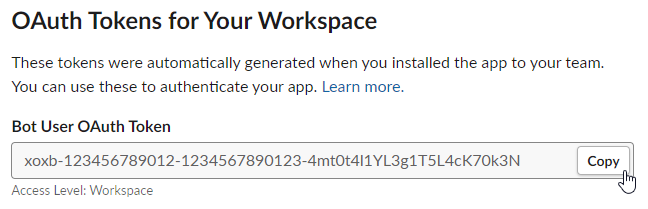
4. Copy the Bot User OAuth Token.
!!! example
Given the API token `xoxb-123456789012-1234567890123-4mt0t4l1YL3g1T5L4cK70k3N` and channel ID `C001CH4NN3L` (obtained via the [Slack service docs](../../services/chat/slack/index.md#getting_the_channel_id)), the Shoutrrr URL should look like:
```url
slack://xoxb:123456789012-1234567890123-4mt0t4l1YL3g1T5L4cK70k3N@C001CH4NN3L
```
### Webhook Tokens
Get a Webhook URL using the legacy [WebHooks Integration](https://slack.com/apps/new/A0F7XDUAZ-incoming-webhooks) or the [Getting started with Incoming Webhooks](https://api.slack.com/messaging/webhooks#getting_started) guide. Replace the initial `https://hooks.slack.com/services/` part with `slack://hook:` to form the Shoutrrr URL.
!!! info "Slack Webhook URL"
```url
https://hooks.slack.com/services/T00000000/B00000000/XXXXXXXXXXXXXXXXXXXXXXXX
```
!!! info "Shoutrrr URL"
```url
slack://hook:T00000000-B00000000-XXXXXXXXXXXXXXXXXXXXXXXX@webhook
```
## Getting the Channel ID
!!! note
Only needed for Bot API tokens. Use `webhook` as the channel for Webhook tokens.
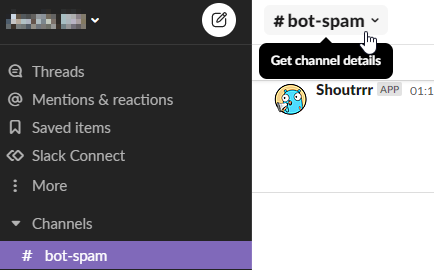
1. In the channel you wish to post to, open **Channel Details** by clicking on the channel title.
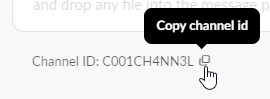
2. Copy the Channel ID from the bottom of the popup and append it to your Shoutrrr URL.
## Additional Configuration
Customize notifications using query parameters in the URL:
| Parameter | Description | Example Value |
|--------------|-----------------------------------------------------------------------------|-------------------|
| `botname` | Bot display name (overrides default). | `ShoutrrrBot` |
| `icon` | Emoji (e.g., `:robot_face:`) or URL for the bot icon. | `:robot_face:` |
| `color` | Message border color (e.g., `good`, `warning`, `danger`, or hex like `%23ff8000`). | `good` |
| `title` | Message title (prepended above the message). | `Alert` |
| `thread_ts` | Timestamp of the parent message for threading (replies). | `1234567890.123456` |
!!! example "Full URL with Customizations"
```url
slack://xoxb:123456789012-1234567890123-4mt0t4l1YL3g1T5L4cK70k3N@C001CH4NN3L?botname=ShoutrrrBot&color=good&title=Great+News& icon=%3Arobot_face%3A&thread_ts=1234567890.123456
```
!!! Note
For colors, escape `#` as `%23` in URLs (e.g., `#ff8000` becomes `%23ff8000`). Use `thread_ts` to reply in threads.