ClanLib makes it possible to create your own font in an image file or use existing system fonts. You can then use the fonts to display text to the player, such as FPS counters, dialog boxes, and other such information. ClanLib gives you a great deal of control over how your text is displayed.
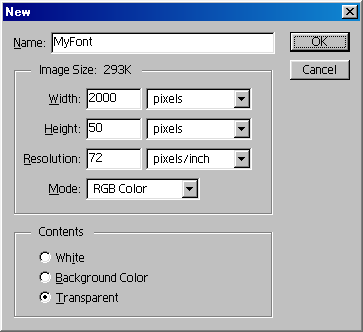
You can make your own font by drawing all the glyphs (or character images) in an image file. Once that is done, you must tell ClanLib how to separate the file into individual glyphs. The easiest way to do this is to use alpha-cutting. To create an alpha-cut font, open up your favorite image editor, and create a wide, short, transparent image:
Then type a long string of characters, which will become the characters in your font. Usually this string will look something like this:
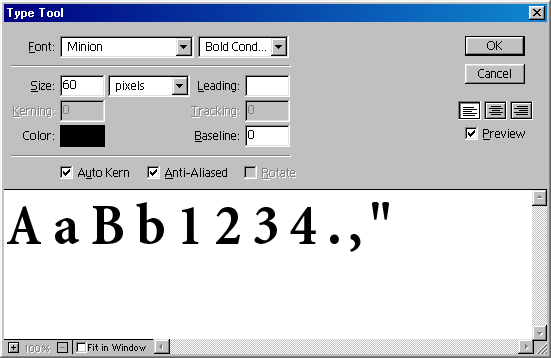
The example set of character glyphs above isn't very useful: usually, you will want to include at least the entire alphabet, probably in upper and lower case, all the numbers, and quite a few of the symbols. However, you do not have to, and in some cases, you won't want to. For example, an LCD numerals font might only include 0-9 and the colon.
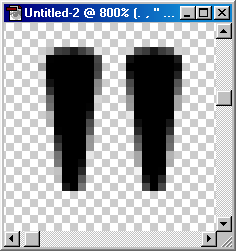
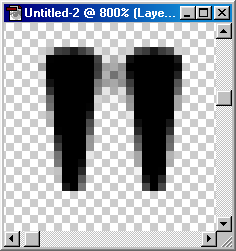
Once you've typed the string in, you must clean up the image to make certain that there's at least one column of transparency between each character. A common problem is the double-quote character: you may need to add a slightly-visible pixel between the two quote marks to make ClanLib treat it as a single character. Here's a before and after example:
ClanLib uses the same mechanism to load bitmap font glyphs as it does to
separate the frames of a sprite from a single file. In fact, a
You should probably already have a resource file or two as part of your game; if you don't, then you're missing out on a lot of flexibility. See the resource overview for more info.
You will need two resources: one for the sprite containing all the glyphs, and one for the font itself. The only one you use directly is the font resource.
Assuming you'd like to create a font called FontA based on an alpha-cut image called font_a.tga, containing the glyphs in the visual example above, your should have some entries in your resources file that look like this:
<sprite name="Font_glyphs">
<image file="font.tga"><alpha /></image>
</sprite>
<font name="Font">
<bitmap glyphs="Font_glyphs" letters="AaBb1234.,"" />
</font>
The following options for sprite-based font resources are supported:
You can also use resources for system fonts, with the following options:
And these options work for both sprite-based and system fonts:
If your resources file was named 'resources.xml', then you can load the font into your program from the resource using the following C++ code:
  CL_ResourceManager manager("resources.xml");
  CL_Font font_a("Font_A", &manager);
Once you've done that, you can call
  font_a.draw(150, 150,
  	"How many boards would the Mongols hoard,"
	" if the Mongol hordes got bored?\n"
	"  --Calvin and Hobbes");
You can also print into a
  CL_Rect bounds_rect(50, 50, 300, 350);
  font_a.draw(bounds_rect,
  	"Gau: There's treasure! It's shiny, shiny, shiny shiny shiny!\n"
	"Sabin: Could anything be that shiny?"
	);
You can create a working
CL_TextStyler ts;
ts.add_font("default", some_font);
ts.add_font("bold", another_font);
It's also possible to keep CL_TextStylers in your resource files. Here's the same CL_TextStyler as above, in resource form, assuming that some_font and another_font are in the resource file:
<text_styler name="ts">
<font name="default" font="some_font" />
<font name="bold" font="another_font" />
</text_styler>
ts.draw(0, 0, "This text is in the default font. {bold}And this text is in another font.{/bold} Narf!");
To draw a "{" character without starting a tag, you can simply put two in a row, which is escaped to mean a single left curly-bracket (right curly-brackets don't need need to be escaped):
ts.draw(0, 0, "This {{ is a left curly brace. Only one of them will appear in the actual output.");
You can also use square-bracket tags that change the justification, color, or scale, or insert newlines:
ts.draw(0, 0,
	"This is a line that's at regular scale and is left justified.\n"
	"[c red]Red[/c][c 0 255 0]Blue[/c][c 0 0 255 170]Green (slightly transparent)[/c].\n"
	"[s 2.0][j center]Here's a line that's center justified and double-sized.\n"
	"[s 2.0][j right]Here's a line that's quadruple-sized (2.0x2.0) and right justified.\n"
	"[/j][/j][/s][/s]This line is back at regular size and left justification.\n"
	"This text is on it's line.[n]This text is on a different line.[n]"
	"There's no difference between using 'n' tags and regular ASCII newlines.\n"
	"[[ Here is a literal left square bracket; only one will appear in the actual output.\n"
);
The above example also demonstrates a handy little C trick: literal strings that appear next to each other will be attached together into a single string by the compiler.
For unusual text effects, you can use a
CL_GlyphBuffer gb;
some_font.draw_to_gb("Eat\nFlaming\nDeath!", gb);
gb.justify_center(); //Applies to all text in the buffer by default
gb.draw(0,0); //Draws the upper left corner of the text bounding box at given pos
You can also use the draw_to_gb() functions several times in a row with
different text and/or fonts, which causes the text to be combined in the
same way that
CL_GlyphBuffer gb;
some_font.draw_to_gb("This text is in the default font. ", gb);
another_font.draw_to_gb("And this text is in another font.", gb);
some_font.draw_to_gb("Narf!", gb);
gb.draw(0, 0);
Editing operations on a